AI Auto-Edits Video for Xiaohongshu: From Raw Footage to Final Cut, Agents Handle Your Content Pipeline
📖 Glossary
AI Box (also known as Agent Computer / Agent PC), is a dedicated local hardware device that runs AI Agents. Pre-installed with an AI agent management system, plug-and-play, running 24/7. Users can remotely command AI to work via Discord, Slack, Telegram, WhatsApp, and more.
Abstract: The biggest headache for content creators isn't ideas—it's editing. The open-source project video-use lets AI agents automatically handle transcription, cutting, subtitles, and color grading, compressing hours of post-production into minutes. This article breaks down video-use's technical architecture and workflow, exploring how local AI boxes can enable 24/7 automated editing and publishing. No need to learn editing—AI does the heavy lifting. Products like Kaihe AIBOX with OpenClaw bring this capability to a local device that works around the clock.
If you create content, you know this feeling: shooting video is easy, editing is brutal. A 5-minute video can take 2 hours to edit. Opening editing software, frame by frame cutting out "um" and "uh" verbal tics, manually adding subtitles,反复 adjusting color and audio. Kaihe AIBOX with its pre-installed OpenClaw agent system, combined with open-source Skills, is turning this into a one-sentence task.
What is video-use
video-use is an open-source video editing Skill from the Browser Use team. Their previous project, browser-use (which lets AI control browsers autonomously), has already racked up 88k stars on GitHub. This time they applied the same approach to video editing—no editing software needed, just tell Claude Code what you want in one sentence.
Put your video footage in a folder, say "edit the footage in xxx folder into a publishable video." The AI inventories your material, proposes an editing plan, waits for your confirmation, then executes: cuts out verbal tics, color grades, adds subtitles, applies audio fade in/out, and outputs the final merged video.
Two-Layer Architecture: Why It's Smarter Than Traditional Approaches
The traditional approach feeds video frame by frame to a large model, easily burning through tens of millions of tokens per video. video-use splits the work into two layers, cleverly bypassing this problem.
Audio Layer, Always Loaded. Through ElevenLabs Scribe transcription, it extracts word-level timestamped transcripts, marking speakers, laughter, sighs, and other audio events. Word-level timestamps are the lifeline of editing precision—without them, every cut point is a guess. Other mainstream transcription tools either only provide sentence-level timestamps or don't do speaker diarization. Scribe is one of the few that does it all.
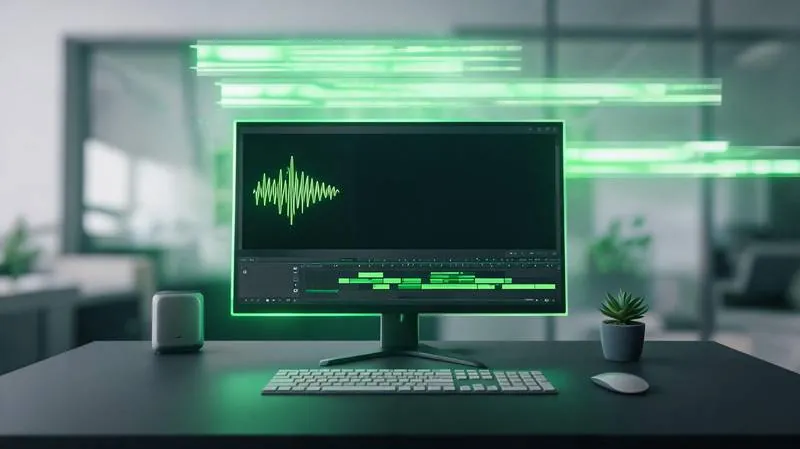
Visual Layer, On-Demand. When facing ambiguous pauses, retake comparisons, or cut point confirmation, timeline_view synthesizes a composite image—filmstrip thumbnails, audio waveform, word labels overlaid together—and feeds it to the LLM. It doesn't watch every frame, only when it needs to.
This approach was validated in browser-use: replacing "watching webpage screenshots" with "reading structured DOM." In video-use, it's replacing "watching video frames" with "reading timestamped transcripts." Same soup, different bowl, but token consumption drops by an order of magnitude.
Complete Workflow
The full pipeline: transcribe → pack → model inference → editing decisions → render → self-check. Each step requires your confirmation before execution—the AI never cuts behind your back.
Step 1, Transcribe. ElevenLabs Scribe converts video audio into word-level timestamped transcripts with speaker labels and audio events.
Step 2, Pack. Phrase-level packing into a takes_packed.md file (~12KB), becoming the LLM's primary reading view.
Step 3, Inference. The LLM reads the transcript and generates an editing plan—which segments to keep, which to cut, where the cut points are.
Step 4, Render. Execute the plan: 30ms audio fade in/out at each cut point, color grading, subtitle overlay.
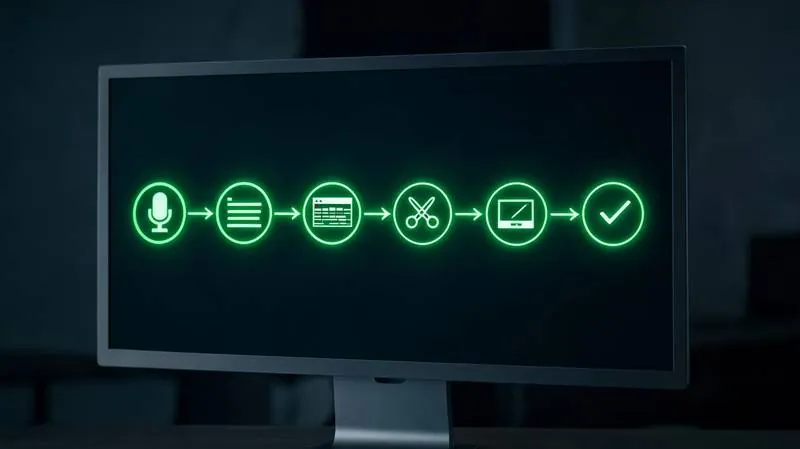
Step 5, Self-check. After rendering, each cut point is auto-inspected for jump cuts, audio peaking, or subtitle occlusion. Issues trigger automatic re-rendering, up to 3 times, before presenting the preview to you.
A nice detail: each editing session's context is saved to project.md. When editing the same project, it resumes from the last state—very practical for course creators, podcasters, and vlog series.
Installation
Three steps:
Clone the project and link to Claude Code's skills directory: ln -s "$(pwd)" ~/.claude/skills/video-use
Install dependencies: pip install -e ., ffmpeg required, yt-dlp optional (for downloading online footage).
Configure ElevenLabs API Key in .env file, open Claude Code and start using.
The Local AI Box Advantage
video-use currently runs on Claude Code, requiring connectivity and API calls. But the concept is the same—AI agents gain professional capabilities by loading Skills.
Kaihe AIBOX comes with OpenClaw pre-installed, supporting custom Skill installation. Agent scheduling runs locally on-device, with cloud API calls only when large model inference is needed. For iterative tasks like video editing, you're not constantly watching token usage. Say a word, and AI handles everything from raw footage to final cut, on standby 24/7.
No need to learn editing software or open a computer. Send a voice message through WeChat telling AI what you want, and let the agent handle the rest.
Further Reading
- Kaihe AIBOX-A1 - Local AI agent computer with Skill system
- Kaihe AIBOX Store - Full lineup of AI boxes, plug and play
- 6 PPT Skills Face Off - Skill ecosystem diversity analysis
- More AI Agent Articles - Agent ecosystem deep dives
-#KaiheAIBOX #AIAgent #OpenSource #ArtificialIntelligence #videouse #AIVideoEditing #AutoEditing #OpenClaw
Kaihe AIBOX | The Agent Computer That Works 7×24 for You · AI Agent