Your Codex Does Not Need You at the Desk: Check Progress and Approve Operations from Your Phone
Abstract: Codex running a long task and you are stuck watching the terminal scroll? In 2026, the mobile remote control workflow for Codex CLI is mature enough. From your phone you can monitor real-time progress, approve or reject file modifications via WeChat, and switch underlying models on the fly. This guide walks through the complete setup in 30 minutes.
One of the classic pain points with Codex CLI: you fire off a complex task and Codex starts churning through files. The terminal scrolls non-stop. You want to go to the bathroom — but you are afraid it will prompt for a permission confirmation ("Should I delete this file?") and freeze until you type yes.
The root issue is this: Codex is working, but you are chained to the screen as the "approval officer".
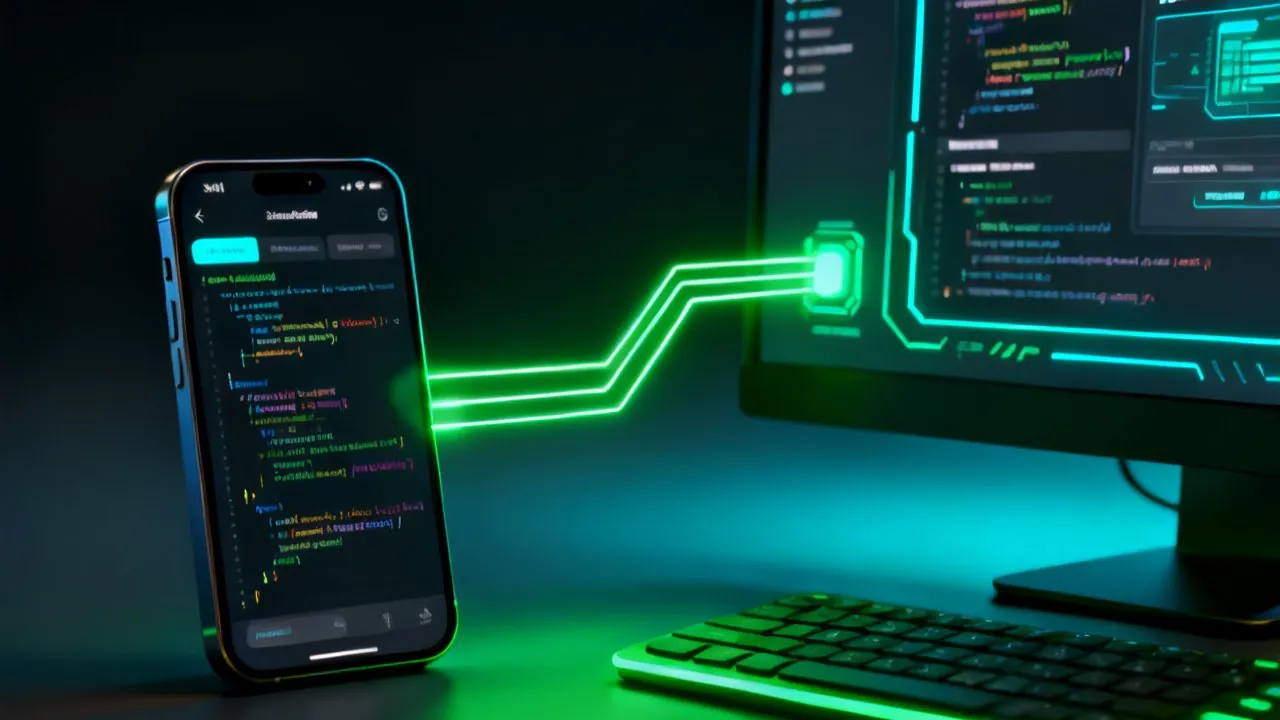
Good news: in 2026, mobile remote control for Codex is fully practical. You do not need to sit in front of the computer. From your phone you can do three things: monitor progress, approve operations, and switch models.
1. Monitor Progress from Your Phone: Real-Time Log Streaming
Codex continuously outputs operation logs while it works — reading files, modifying lines, running shell commands. The simplest way to monitor this from your phone is terminal sharing with push notifications.
Method 1: SSH from Your Phone
If you have a computer or server running Codex 24/7 — such as a Kaihe AIBOX local AI agent host — install an SSH client on your phone (Termius for iOS, JuiceSSH for Android) and connect directly to the running terminal. Open the app, connect to the IP address, and run tmux attach to see Codex's live output.
The critical prerequisite: the machine running Codex must stay on 24/7. If you run Codex on your laptop, closing the lid puts it to sleep and your phone SSH will not reach it. This is precisely why many developers deploy Codex on always-on hardware — a spare desktop, a NAS, or a dedicated local AI agent device.
Method 2: Auto-Push Screenshots to WeChat
A more convenient approach: let Codex automatically push screenshots to your WeChat at key milestones. The implementation is straightforward — use Codex's shell command capability combined with a screenshot tool:
codex "refactor user_auth module" && \
  screencapture -x ~/codex_logs/step1.png && \
  wechat-send --image ~/codex_logs/step1.png
You are out having coffee. Your WeChat pings with a screenshot. You glance — Codex has completed the file restructuring. You know exactly where it stands without opening a terminal.
2. Remote Approval: Tap "Approve" or "Reject" on Your Phone
This is the core mobile remote control scenario. When Codex wants to modify or delete files, it prompts for permission confirmation in the terminal — "Should I delete config_old.py?" If you are not at the computer, it waits.
Method 1: WeChat Approval Workflow
The most practical approach. Configure it so that instead of popping a terminal confirmation, Codex sends a WeChat message:
📖 Glossary
AI Box (also known as Agent Computer / Agent PC), is a dedicated local hardware device that runs AI Agents. Pre-installed with an AI agent management system, plug-and-play, running 24/7. Users can remotely command AI to work via Discord, Slack, Telegram, WhatsApp, and more.
🤖 Codex Operation Request Action: Delete file
config_old.pyReason: Replaced byconfig_v2.py, no other references found [Approve] [Reject] [View Details]
You tap "Approve" on your phone — Codex continues. You tap "Reject" — Codex skips this operation and looks for an alternative. This is implemented through Codex's hook mechanism: drop an approval script in ~/.codex/hooks/ and Codex calls it before executing high-risk operations. The script pushes operation details to your WeChat via a webhook, waits for your reply, and passes the result back to Codex.
Method 2: Web Dashboard in Mobile Browser
If you do not want to set up WeChat integration, the more direct route is Codex's Web Dashboard. Several open-source projects (e.g. Codex Web UI) map the CLI interface to a web console. Open the address (exposed via Tailscale or Cloudflare Tunnel) in your phone's browser and you get a terminal-like interface. When Codex prompts for confirmation, the same buttons appear on the web page — tap "Allow" from your phone.
The advantage: zero development effort. The disadvantage: if you are outside your home network you need Tailscale or Cloudflare Tunnel configured for external access.
3. Switch Models from Your Phone: Different Tasks, Different Models
Remote approval and progress monitoring solve the "remote control" problem, but an even more useful scenario is changing the underlying model based on task needs.
Imagine: this morning before leaving home, Codex is running a Python refactoring task using the DeepSeek V4-Flash budget channel. By noon you notice it keeps stumbling on complex logic — DeepSeek确实对复杂推理确实不如Claude Opus 5. You do not need to rush home. Open the CC Switch management panel on your phone (see the previous article "Codex with CC Switch: Third-Party API Setup on Mac and Windows"), remotely switch to the Claude channel, and Codex continues running with better model quality for the remaining tasks.
The ideal scenario is automatic switching — Codex itself decides which model to use based on task complexity. This is the core value proposition of a local AI agent scheduler like Kaihe AIBOX: a hardware-level multi-model routing agent continuously analyzes Codex task types (simple refactor → cheap model, complex architecture → strong model, bulk file processing → budget batch model) and switches automatically. You do not need to intervene at all.

4. Step-by-Step: 30-Minute Setup for Mobile Remote Control
Here is the complete setup walkthrough using Kaihe AIBOX + WeChat approval as the reference:
Step 1: Deploy Codex on always-on hardware.
With Kaihe AIBOX, Codex CLI comes pre-installed — plug in and connect. If using a spare computer or NAS, the same applies — but the device must be able to run 24/7.
Step 2: Configure SSH port mapping (optional, for direct terminal access).
Set up Tailscale or Cloudflare Tunnel so your phone can SSH in from anywhere. Tailscale is the simplest: install the Tailscale client on the host device and log in, install the Tailscale app on your phone and log in with the same account, and your phone gets a virtual IP that connects directly to the device.
Step 3: Write the Codex approval hook script.
Create ~/.codex/hooks/approval.py on the host device. This script triggers automatically when Codex encounters high-risk operations:
# ~/.codex/hooks/approval.py
import requests, sys, json

action = json.loads(sys.argv[1])
msg = f"Codex request: {action['type']} — {action['description']}"

# Push to your WeChat via enterprise webhook
requests.post(
    "https://qyapi.weixin.qq.com/cgi-bin/webhook/send?key=YOUR_KEY",
    json={"msgtype": "text", "text": {"content": msg}}
)

# Wait for user reply (simplified — production needs async handling)
print("approved")  # In production, poll or use a message queue
Step 4: Verify from your phone.
Open WeChat on your phone and give Codex a task — for example, "Consolidate all import statements across the project." A few minutes later, your phone buzzes: "Codex request: Modify users/models.py — add import line." You tap Approve. More requests follow. When the task is done, you receive a summary: "Task complete: 7 files modified, 15 lines added, 3 deleted."
5. What This Workflow Actually Changes
In 2026, an AI coding assistant should not require you to sit in front of a screen. The essence of Codex and similar CLI tools is "AI writes code for you" — but if you still have to watch it run, you have just traded one form of labor for another: from "write code myself" to "watch AI write code."
The truly efficient workflow is: humans set goals, AI executes, humans only do final sign-off. You tell Codex "Refactor this module", then close the laptop and go have dinner. An hour later, your phone has five approval notifications — you tapped Approve during dinner without thinking about it. When you return to the office, all changes are ready. You just open the diff, review it, and commit.
Kaihe AIBOX and similar local AI agent schedulers make this scenario "production-ready" rather than "theoretically possible." Because its biggest value is not the hardware itself — it is 7×24 availability. You close your laptop, it keeps running. You sleep, Codex keeps reviewing code and running tests. You step out, your phone approves operations. AI working harder when you are not around — that is the real value of mobile remote control.
The beauty of this approach is that it turns Codex from a tool you babysit into a tool that works for you autonomously. You set the objective, go about your day, and only engage on your own terms — approving critical operations from your phone, switching models when needed, and reviewing the final result at your convenience. This is what AI-assisted development should have been from the start: humans doing the creative thinking and strategic decisions, AI doing the grinding work, and mobile phones providing the lightweight oversight layer in between.
Further Reading
- 5 Codex Slash Commands Every Beginner Should Learn - /plan /mention /approvals and other productivity operations
- Codex with CC Switch: Third-Party API Setup - CC Switch protocol translation and multi-model switching
- Claude Opus 5 / Kimi K3 / MiniMax H3 / DeepSeek V4-Flash comparison - Model selection guide
- Kaihe AIBOX Store - Full lineup of 24-hour AI scheduler hardware
Kaihe AIBOX · Your Private AI Assistant Working 7×24 · AI Agent