Hermes Desktop Public Beta: Windows/macOS/Linux, Desktop + CLI + TUI Seamless Switching
📖 Glossary
AI Box (also known as Agent Computer / Agent PC), is a dedicated local hardware device that runs AI Agents. Pre-installed with an AI agent management system, plug-and-play, running 24/7. Users can remotely command AI to work via Discord, Slack, Telegram, WhatsApp, and more.
Abstract: On June 3, Nous Research launched Hermes Desktop public beta, supporting Windows, macOS, and Linux. Three modes — Desktop GUI, CLI, TUI — seamlessly switch with consistent session state. No more browser dashboard — Hermes now has its native desktop client.
On June 3, Nous Research announced: Hermes Desktop public beta is here.
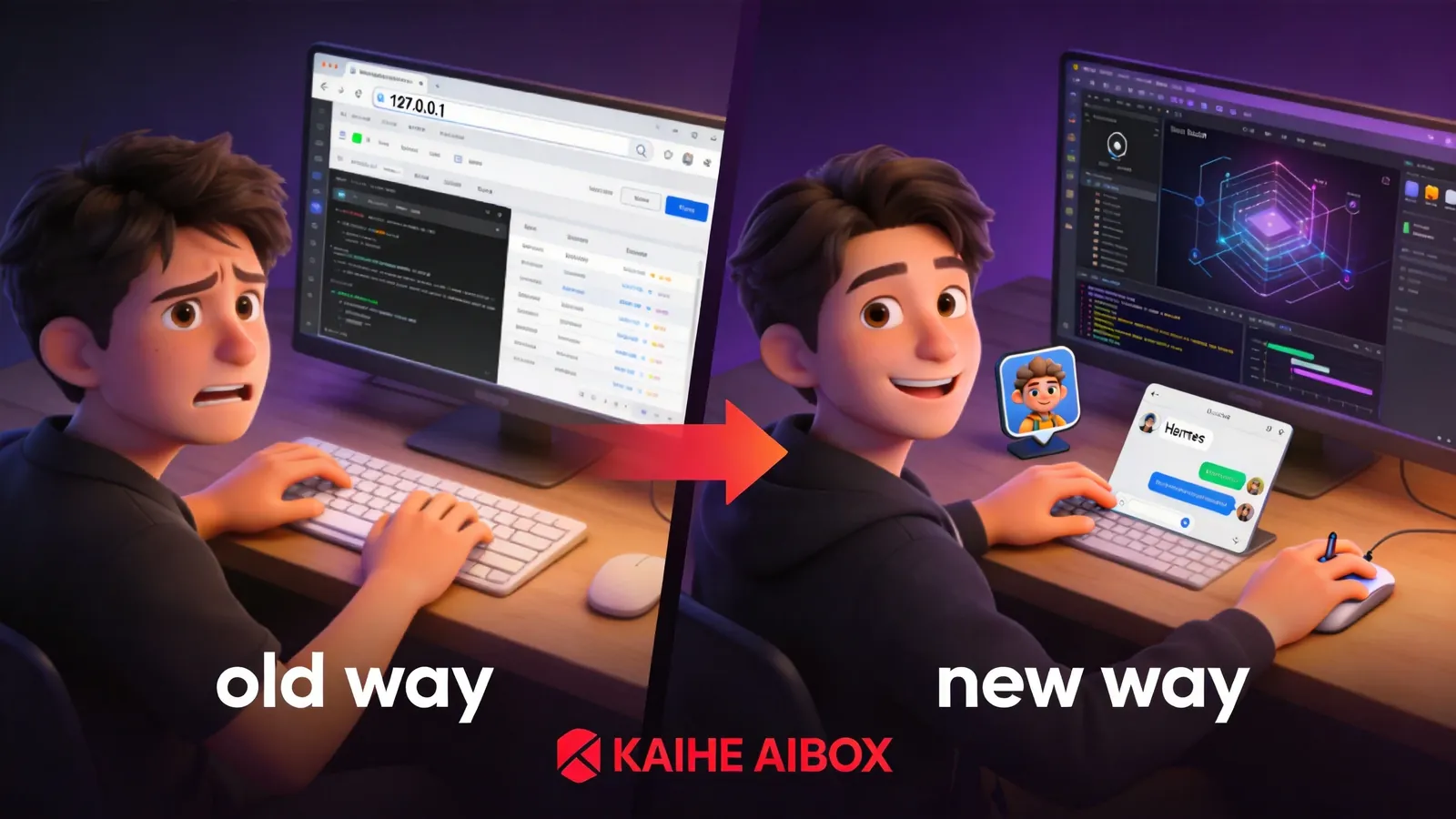
Previously, Hermes Agent could only be accessed via browser dashboard or command line. Now there's a native desktop client — double-click the icon and open, as simple as opening WeChat.
Three Platforms Supported
Hermes Desktop supports Windows, macOS, and Linux:
macOS. Download .dmg installer, requires macOS 12+. Drag to Applications folder. Supports both Apple Silicon and Intel chips.
Windows. Download .exe installer, requires Windows 10+. Also installable via winget: winget install NousResearch.HermesDesktop. NSIS installer — next, next, done.
Linux. Multiple formats: .AppImage (universal), .deb (Debian-based), .rpm (Fedora-based). Covers all major distributions.
Download: hermes-agent.nousresearch.com/desktop
Three Modes, Seamless Switching
Hermes Desktop's biggest highlight isn't "a desktop client exists" — it's three modes seamlessly switchable:
Desktop (GUI). Graphical interface like any app. Left side: conversation list. Right side: chat window. Top: toolbar. Best for daily use — see conversation history, skill list, memory status at a glance.
CLI. Use commands in terminal. Best for developers — script batch operations, combine with other CLI tools, SSH remote access.
TUI. Terminal "semi-graphical" interface — keyboard shortcuts, more user-friendly than pure CLI, no mouse needed. Best for keyboard-centric developers.
Key point: seamless switching between all three modes. Start a conversation in Desktop, continue in CLI, check in TUI — session state remains consistent. No context loss from switching interfaces.
Think of it as three entrances to the same room — door, window, skylight — everything inside stays the same regardless of entry point.
Desktop Features
Session Management. Left sidebar: create, delete, rename conversations. Each session independent, contexts isolated. Session search available — find historical conversations without scrolling.
Real-Time Execution Visualization. When Hermes executes tasks (calling tools, running code, searching web), Desktop shows the execution process in real-time. See what the AI is doing, what tools it called, what results returned. Smoother than browser dashboard — native app needs no page refresh.
Skill Library Management. View, edit, delete skill files (SKILL.md) directly in Desktop. See what new skills the AI self-evolved.
Memory Status. Current agent memory profile, persistent memory contents, session history — all viewable in Desktop.
Model Configuration. Switch underlying LLM (GPT, Claude, DeepSeek, etc.), configure API keys, adjust parameters — all in settings, no config file editing.
First Launch Flow
First time opening Hermes Desktop, a setup wizard guides you:
- Select mode: Local or Remote
- Local mode: auto-detect if Hermes Agent installed. If not, run official install script with automatic dependency resolution
- Configure AI model: select provider (OpenAI/Anthropic/DeepSeek), enter API Key
- Create first conversation: start chatting with Hermes
Local Mode. Hermes Agent runs on your own computer. Data fully local. Best for personal use and development testing.
Remote Mode. Connect to Hermes Agent running on a remote server. For example, Hermes running on your Kaihe AIBOX A1. Desktop acts as remote control interface. Best for A1 users — no browser IP address typing, just connect via desktop client.
Working with Kaihe AIBOX A1
A1 users might ask: A1 already has a management dashboard, why Hermes Desktop?
Different purposes:
A1 Management Dashboard (browser). For device management — install/uninstall services, configure network, check system status. It's for "managing the device."
Hermes Desktop. For Agent interaction — chat with Hermes, view skill library, manage memory. It's for "using the Agent."
Use Hermes Desktop's remote mode to connect to Hermes Agent running on A1. Now you have a native desktop client to operate the AI on A1 — better experience than browser, faster response, more features.
A Rational View
Public beta, not final release. Bugs, crashes, missing features possible. Not recommended for production dependency.
Resource usage. Desktop client occupies some memory and CPU (based on Tauri framework, lighter than Electron). May be demanding on low-spec devices.
Features still evolving. Some advanced features (multi-agent orchestration, batch operations) may not be complete in Desktop yet — use CLI for those.
Not mandatory. If you're comfortable with browser dashboard or CLI workflows, you don't need Desktop. It's a more convenient entry point, not a necessity. To learn more, visit the homepage.
Want to Go Deeper?
"Hermes Agent Self-Evolution Loop Tested: 100 Iterations Sharper Skills" — evolution mechanism "Your AI Isn't a Chatbot: Understanding Hermes and OpenClaw Collaboration" — architecture deep dive
-#HermesDesktop #DesktopClient #KaiheAIBOX #HermesAgent #CrossPlatform
Kaihe AIBOX | The Agent Computer That Works 7×24 for You · Hermes