📖 Glossary
AI Box (also known as Agent Computer / Agent PC), is a dedicated local hardware device that runs AI Agents. Pre-installed with an AI agent management system, plug-and-play, running 24/7. Users can remotely command AI to work via Discord, Slack, Telegram, WhatsApp, and more.
Summary: The worst part of any new device is the setup before you can use it. KAIHE AIBOX(铠盒AIBOX) is a dedicated agent computer that ships with its agent system already installed: plug it in, connect it to the router, open one address in a browser, and it is working. Five steps, and the hard part was never the technology, it was the order.
After you switch it on, it is already waiting
Connect the power and the device boots on its own. No language picker, no time zone wizard, no drivers to install. The agent system that shipped with it is already running, waiting for you to find it from a browser.
That step disappears because this is a standalone machine. It does not live inside your laptop. Whether your laptop is on or off makes no difference to it.
Step one: power, then the router
Plug in the power, then run the network cable to the router at home or in the office.
The router matters because this machine has no screen of its own. You drive it from a phone or a computer, and those two devices must sit on the same local network before they can see each other. Wiring it to the router is what puts them there.
Step two: one address in a browser
On the same network, open a browser on your phone or computer and type the access address printed on the bottom of the device.
The management page appears. No app to install, no account to register, no verification code, and no need to look up your own network settings.
Step three: pick a model, paste one key
Open the settings page, choose the model service you want from the list, and paste its API credentials.
Worth being plain about this: the device does not come with model credits. You choose the model and you pay for what it uses. What KAIHE AIBOX provides is the place where those models plug in, not the bill.
If a field is wrong the page says so instead of failing silently. Get this one right and the machine can actually think.
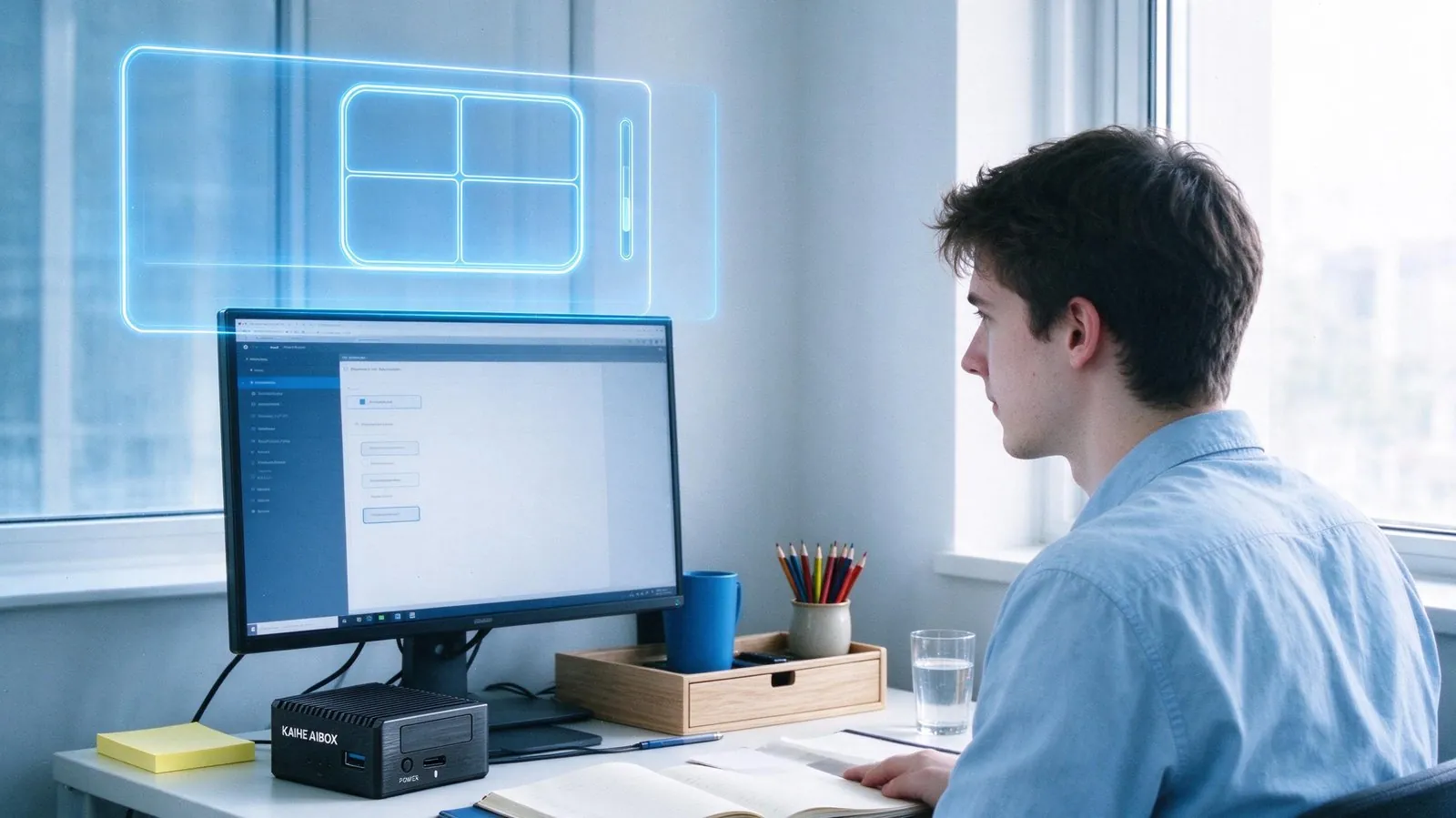
Step four: connect a chat app
Pick whichever you use, WeChat, WhatsApp, Telegram or Slack, and follow the prompts to finish binding.
Once bound, your chat window is the control panel. No commands to memorise, no dashboard to keep open. Whatever occurs to you, you send as a message.
Step five: send the first task
With setup done, send one sentence in plain language, something like "sort these three quotes into a single table".
It picks the task up and reports back when it is done. At that point the machine no longer needs you to run it.
| Step | What you do | Roughly |
|---|---|---|
| 1 | Power on, cable to the router | 1 minute |
| 2 | Open the management page | 30 seconds |
| 3 | Choose a model, paste credentials | 1 minute |
| 4 | Bind a chat app | 1 minute |
| 5 | Send the first task | 30 seconds |
Step three takes the longest, because you have to fetch a key from your model provider first.
Four things it removes for you
| Setting one up yourself | KAIHE AIBOX |
|---|---|
| Install the OS, runtime and dependencies | already installed at the factory |
| Edit config files and tune parameters | click through a page |
| Learn the command line, remember paths | send a WeChat message |
| Everything stops when the laptop closes | runs 24/7 on its own |
The first two are what discourage most people. The third is what discourages the rest.

If you get stuck, check these three first
The usual first-run problems are not hardware faults.
One: the network cable went into a wall port instead of the router, so the two devices sit on different segments and the browser never loads. Two: the API credentials were pasted with a trailing space or newline, which looks fine and does not work. Three: the chat app was bound but never confirmed on the device, so messages go out and nothing answers.
The official guidance follows the same order: finish the network and API configuration first, the device runs around the clock and keeps working with your computer off, and personal data and work records stay local by default.
What it will not do
It will not decide which model you should use, and it will not sign you up with a model provider.
It needs power, a network connection, and the same local network as the device you configure it from. There is no shortcut around those three.
Before setup it needs you to work through five steps carefully. After setup it does not need you at all.
Related Reading: - Plug It In, No Coding: A Personal AI Assistant Without the Setup - OpenClaw or Hermes on a KAIHE AIBOX? - How Should Multiple AI Agents Split the Work?
KAIHE AIBOX #personal AI assistant #AI agent #agent computer #plug and play #local AI
For more information, search [KAIHE AIBOX] or contact: [email protected]
KAIHE AIBOX · 7x24 Personal AI Assistant | Product