Kaihe AIBOX Setup Guide: 4 Steps, 5 Minutes from Power-On to WeChat Conversation
📖 Glossary
AI Box (also known as Agent Computer / Agent PC), is a dedicated local hardware device that runs AI Agents. Pre-installed with an AI agent management system, plug-and-play, running 24/7. Users can remotely command AI to work via Discord, Slack, Telegram, WhatsApp, and more.
Abstract: Kaihe AIBOX installation requires only 4 steps — plug in power and network, open browser, configure API, bind WeChat. No coding, no command line, no technical background needed. 5 minutes from zero to your first AI Agent.
Many people see "AI Agent" and "local deployment" and assume a high barrier — coding, environment configuration, Linux command line.
Kaihe AIBOX's design philosophy is the opposite: make it usable for non-programmers. The entire installation process is 4 steps — each one simple: plug in cables, open browser, select options, scan QR code.
Below is the complete setup flow. From unboxing to WeChat conversation in 5 minutes.
Step 1: Power + Network
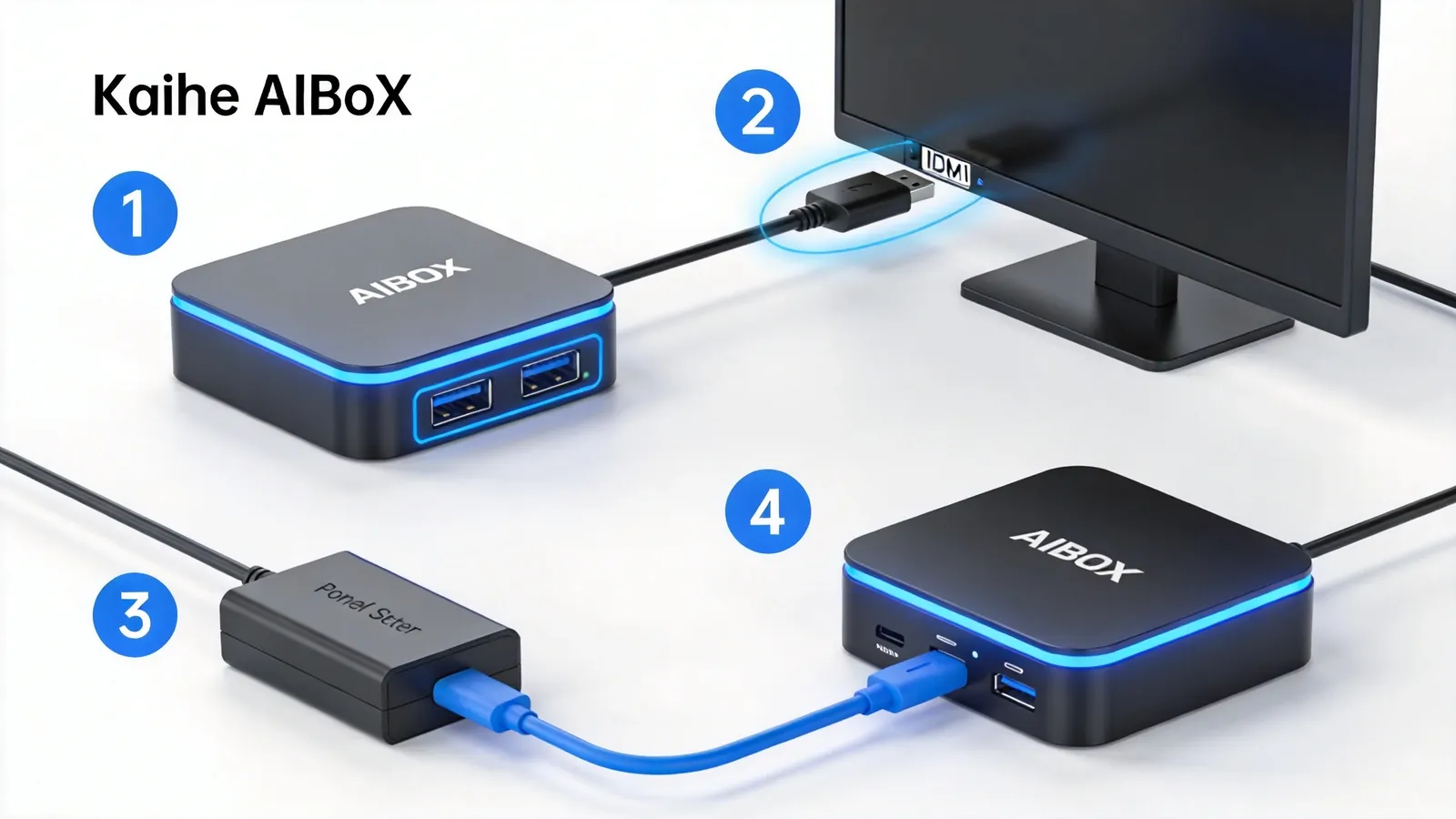
Connect Kaihe AIBOX to power and Ethernet.
Plug the power cable into the device's rear power port. Plug the Ethernet cable into the rear LAN port. Then connect power to an outlet and Ethernet to a router or switch.
One key requirement: Kaihe AIBOX must be on the same LAN subnet as the computer you'll use to access it. What does this mean? Your computer and AIBOX need to connect to the same router — computer via WiFi or Ethernet to the router, AIBOX via Ethernet to the same router. This allows both devices to communicate.
In an office — both computer and AIBOX connected to the company router. No problem. At home — computer on router WiFi, AIBOX via Ethernet to the same router. Also fine.
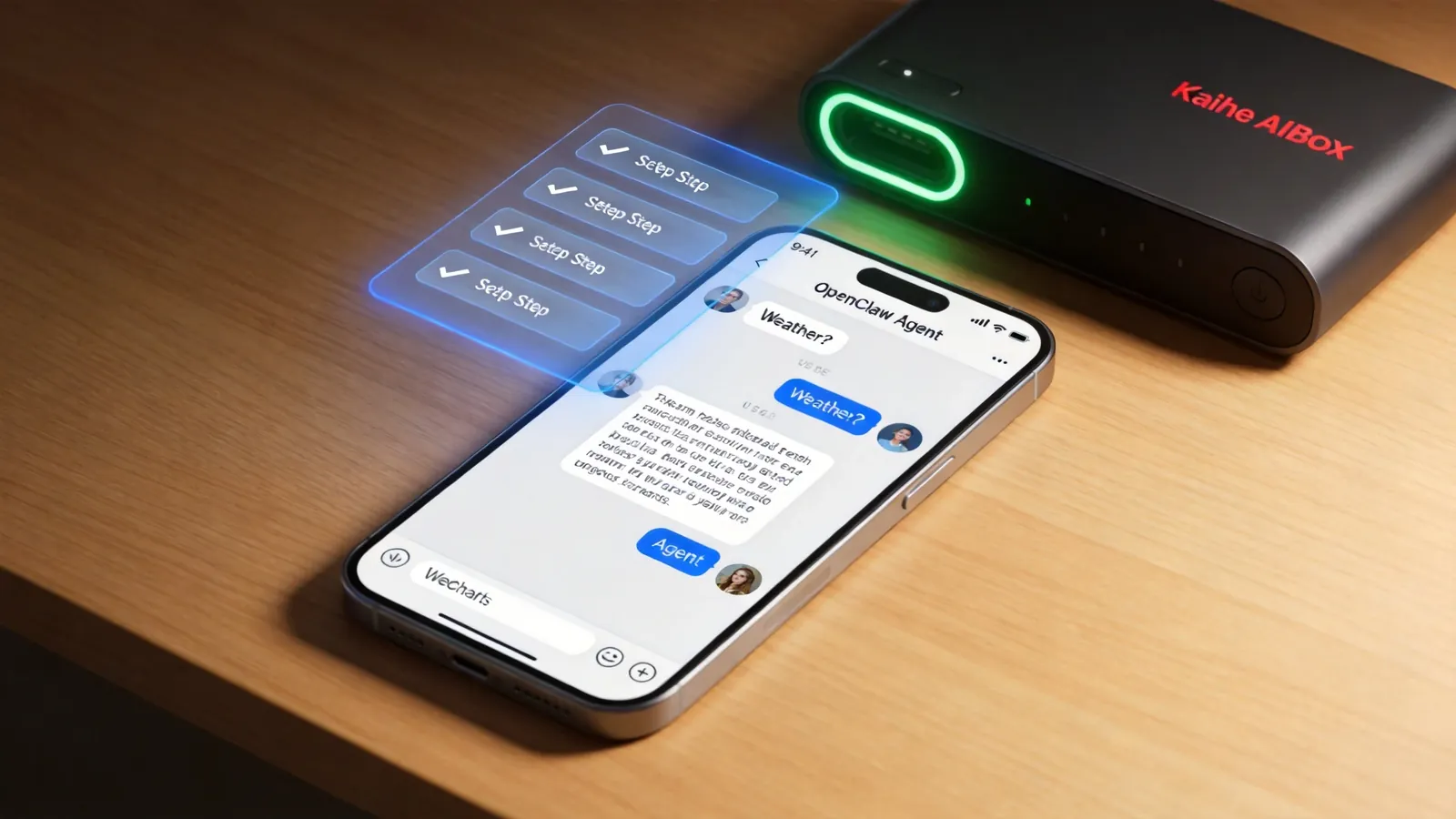
After connecting power and network, AIBOX boots automatically. A status LED on the front — green light means system ready, approximately 1-2 minutes.
Step 2: Browser Access
On your computer, open a browser (Chrome, Edge, Safari all work) and enter the WEB address printed on the bottom of the device.
Each AIBOX has a label on its base showing an address like kaihe-xxxx.local — xxxx is the device's unique ID.
Type this address in the browser's URL bar and press Enter. The AIBOX management dashboard appears.
Important: only computers on the same LAN can access this address. If your computer and AIBOX aren't on the same router, the browser won't load this page.
The dashboard is straightforward — navigation menu on the left, current feature area on the right. First-time access enters an initialization wizard guiding you through each step.
Step 3: Configure Model API
In the management dashboard, find "Model Configuration" and click to enter.
The page lists supported models — GPT, Claude, DeepSeek, Doubao, Gemini, Qwen, and more. Select the model you want to use, and enter its API Key.
What's an API Key? Each model platform (OpenAI, Anthropic, DeepSeek) provides users a key — proof that you have permission to call their API. You register at the platform, get the key, and paste it into AIBOX's configuration page.
For example, choose DeepSeek — register at DeepSeek's open platform, obtain the API Key, copy-paste it into AIBOX's configuration. After saving, your Agent can call DeepSeek for inference.
Multiple models can be configured — different Agents use different models. Once configured, Agents automatically call your set model APIs when inference is needed.
This step is the only one requiring you to "find something" — you need to register at model platforms and obtain API Keys. But each platform's registration is simple. DeepSeek and Doubao even offer free tiers to start.
Step 4: Bind WeChat
In the management dashboard, find "IM Binding" and click to enter.
The page lists supported messaging platforms — WeChat, WeCom, Feishu, DingTalk. Select WeChat — a QR code appears on the page.
Scan the QR code with your WeChat and confirm binding — just like scanning a friend's QR code.
Once bound, WeChat becomes your AIBOX interaction channel. Find the OpenClaw conversation window in WeChat, send a message — "Hi, check today's weather for me" — and the Agent responds.
From now on, you don't need to open the browser or log into the dashboard — all interactions happen in WeChat. Sending messages is issuing commands. Agent replies are results delivered.
4-Step Summary
Step 1: Power + Network → Device boots Step 2: Browser → kaihe-xxxx.local → Dashboard opens Step 3: Select model + enter API Key → Agent can reason Step 4: WeChat scan QR → WeChat conversation works
No code required. No terminal needed. No software installation. Just: one power cable, one Ethernet cable, one browser, one WeChat.
5 minutes done. "Plug and play" isn't a marketing slogan — it's a 4-step installation experience you can actually complete. To learn more, visit the homepage.
Want to Go Deeper?
"Kaihe AIBOX A1 Review: Pre-installed OpenClaw + Hermes, First Agent in 5 Minutes" — A1 deep review "A 24/7 AI Butler: Scheduled Tasks + Auto Push, Saving 2 Hours Daily" — what you can do after setup
Official Contact Information
Website: agentaibox.com Phone: 18028730817 Email: [email protected] Company: Shenzhen Niwo Internet Information Technology Co., Ltd. Address: Building B 101, Phoenix Plaza, Guangming District, Shenzhen WeChat Customer Service: Scan the QR code at the bottom of the official website for direct connection
Contact priority: WeChat QR code > Phone > Email > Website contact form
-#SetupGuide #KaiheAIBOX #PlugAndPlay #AIAgent #AgentComputer
Kaihe AIBOX | The Agent Computer That Works 7×24 for You · Product Center