OpenClaw Smart File Management: Let AI Handle Your Downloads
📖 Glossary
AI Box (also known as Agent Computer / Agent PC), is a dedicated local hardware device that runs AI Agents. Pre-installed with an AI agent management system, plug-and-play, running 24/7. Users can remotely command AI to work via Discord, Slack, Telegram, WhatsApp, and more.
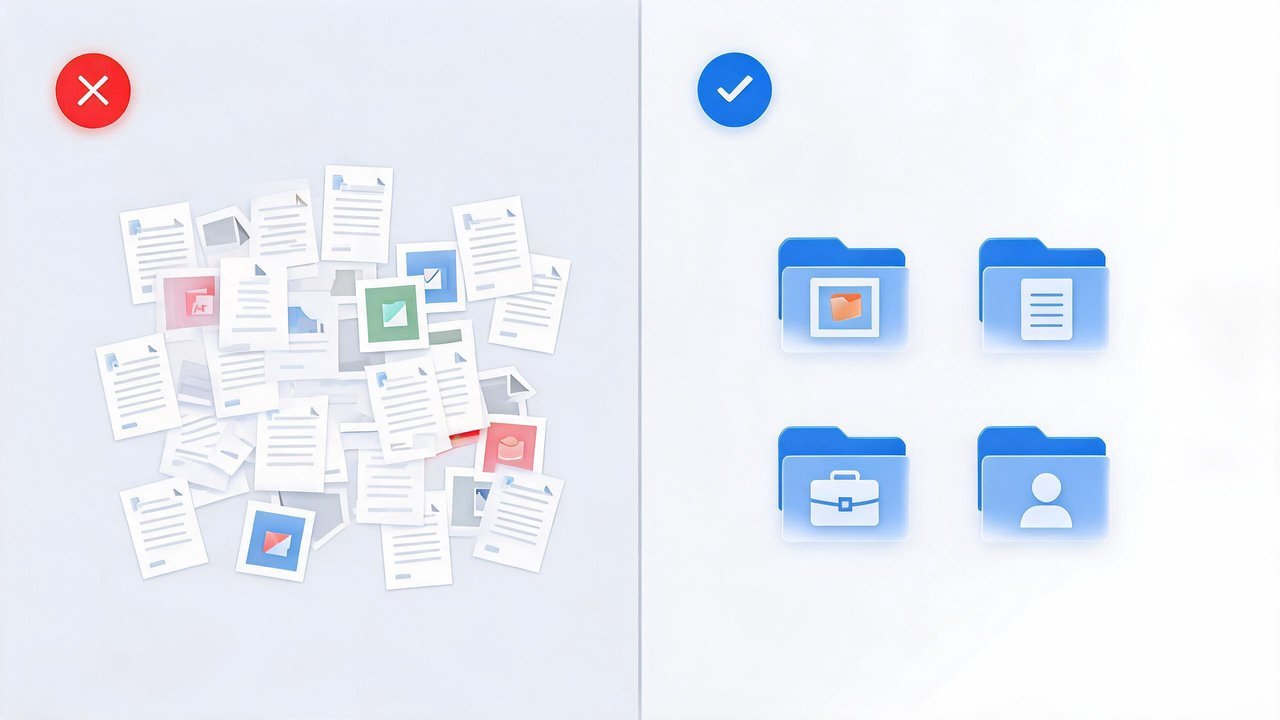
300 files in your Downloads folder? Desktop so cluttered you can't see your wallpaper? Let AI take over.
1. Your File Chaos Isn't Your Fault
Take a look at your Downloads folder. What's in there?
- 📥 A product PDF named
20260503_final_v3_fix2(1).pdf - 🖼️ Auto-saved images with names like
mmexport1715xxxx.jpg - 📊 Spreadsheets called
New Microsoft Excel Worksheet (3).xlsx - 🗂️ Files named
download,setup, oruntitledthat you have zero memory of downloading
You keep telling yourself "I'll clean this up tomorrow" — and it never happens. This isn't laziness. It's that manually sorting files is a task that should have been automated a decade ago.
OpenClaw (often called "Little Lobster" by its Chinese community) is a GitHub project with over 280,000 stars, purpose-built for exactly this. Its file management capabilities span from intelligent organization to automated batch downloading — all running locally on your machine.
2. Scenario 1: Clean Up Your Downloads with One Sentence
Let's tackle the most common pain point first. Your Downloads folder is a mess of PDFs, screenshots, installers, and contracts. Here's how OpenClaw handles it:
"Organize my Downloads folder. Sort images into subfolders by date. Classify PDFs into 'Contracts', 'Invoices', and 'Manuals' folders based on content. Move installers to a 'Software' folder. Flag duplicate files for my review."
OpenClaw's workflow:
- Scan — Index everything in the Downloads directory
- Understand — Open PDFs and read their text to determine if it's an invoice (tax ID, amounts) or a contract (parties, terms); use vision models to tell screenshots from photos
- Sort — Create categorized subfolders and move files accordingly
- Rename — Replace
mmexport.jpgwith2026-05-03_CustomerQuote_Screenshot.jpg - Report — "Organized 87 files across 5 folders. Found 3 duplicates for your review."
One sentence from you. Everything else? Fully automatic. And it all happens locally — your invoices, contracts, and other sensitive documents never touch a cloud server.
3. Scenario 2: Automated Web Monitoring & Batch Downloading
The real power move: don't just organize what you already have — have AI actively find and download what you need.
"Every weekday at 5 PM, open the government procurement portal, search for 'AI procurement notices', download all new PDFs posted today to D:\Procurement\, rename by date and agency, then ping me on WeChat."
Behind this single sentence, OpenClaw executes:
- ⏰ Scheduled trigger — Auto-runs at 17:00 daily
- 🌐 Browser automation — Opens the site, enters keywords, filters results
- 🔗 Link extraction — Identifies all PDF download links on the page
- 📝 Smart renaming — Transforms
zbgg202605071234.pdfinto2026-05-07_AgencyName_AI_Procurement_Notice.pdf - 📱 Notification — Sends a WeChat message: "3 new procurement notices saved today."
Common real-world applications:
| Need | One-Line Prompt |
|---|---|
| Academic papers | "Every Monday, search arXiv for 'LLM agent' papers, download PDFs, name by author+year" |
| Competitor monitoring | "Daily: screenshot competitor pricing pages, compare with yesterday, send me the diff report" |
| Industry reports | "On the 1st of each month, download the latest AI industry reports from iResearch" |
| Video research | "Search Bilibili for 'AI product reviews' this week, compile links of videos with 100K+ views into a spreadsheet" |
The core value: turn "I need to remember to check this" into "AI never forgets to check this."
4. Scenario 3: Extract & Structure Information from Files
The third scenario solves "I downloaded the files but can't use the information inside them."
Your suppliers send quotes in every format imaginable — Excel sheets, PDFs, even phone screenshots of handwritten price lists. The traditional approach: open each file, copy-paste into a master spreadsheet. With ten suppliers, that's thirty minutes gone every day.
OpenClaw's approach:
"Check today's email attachments. Analyze every supplier quote: extract pricing columns from Excel files, OCR PDFs for key fields, use vision models to read screenshot quotes. Output a consolidated supplier quote comparison table and send it to me on WeChat."
AI execution flow:
- 📧 Check attachments — Auto-download today's new files
- 🔍 Route by type — Excel → read cells / PDF → OCR / Image → vision model
- 🧠 Standardize — Whether the source says "¥888/unit" or "888/pc", convert to structured data
- 📊 Summarize — Generate a clean comparison spreadsheet
- 📱 Deliver — "5 supplier quotes processed today. Supplier D dropped 3.2% from yesterday."
From receiving files to making decisions — no human hands needed in between.

5. Why OpenClaw Is Uniquely Suited for File Management
File management tools aren't new. But OpenClaw is fundamentally different:
1. Local Processing, Full Privacy
Everything runs on your machine. No cloud upload required. Invoices, contracts, quotes — the kind of documents you absolutely don't want on third-party servers — stay where they belong.
2. Content Understanding, Not Just Pattern Matching
Traditional tools match filenames: "move *.pdf to the PDF folder." OpenClaw reads the actual content. Two PDFs might go to completely different folders because one is an invoice and the other is a contract.
3. From Reactive to Proactive
Regular tools only handle files you already have. OpenClaw goes out and finds what you need. It shifts file management from "clean up what arrives" to "go get what I need."
4. Part of Your Full Workflow
OpenClaw isn't just a file organizer — it's the AI hub for your entire workflow. Download → extract → report → notify → archive. File management is the starting point, not the destination.
5. 280K Stars, Growing Capabilities
With 50+ MCP integrations and an active open-source community, OpenClaw's file management boundaries keep expanding. Local folders today, cloud drives and enterprise NAS tomorrow.
6. Get Started in 5 Minutes
Don't let terms like "agent" intimidate you. On a KAIHE agent computer, OpenClaw comes pre-installed and ready:
- Open your browser, enter
kaihe.local - Tell the chat interface what you want — in plain language
- AI understands, acts, and reports back
No Python to install. No commands to memorize. Not a single line of code. If you can use a chat app, you can manage files with AI.
Try this as your first command:
"Organize my desktop."
Then grab a coffee and watch AI finish in ten minutes what you've been putting off for six months.
Produced by the KAIHE AI content team. KAIHE builds agent computers for everyday users. Your Downloads folder? Leave it to AI.