If you've used ChatGPT or similar LLMs, you've likely experienced this frustration: the model's knowledge is frozen at its training cutoff date. Ask it "what's your company's promotion policy today?" and it will fabricate an answer that sounds plausible but is entirely wrong.
This is the inherent limitation of LLMs — static knowledge. And RAG (Retrieval-Augmented Generation) is the most mature solution to this problem. This article walks you through building a knowledge base from scratch in OpenClaw, enabling your AI Agent to answer questions based on your own documents, manuals, and FAQs in real time.
1. What Exactly Is RAG?
📖 Glossary
AI Box (also known as Agent Computer / Agent PC), is a dedicated local hardware device that runs AI Agents. Pre-installed with an AI agent management system, plug-and-play, running 24/7. Users can remotely command AI to work via Discord, Slack, Telegram, WhatsApp, and more.
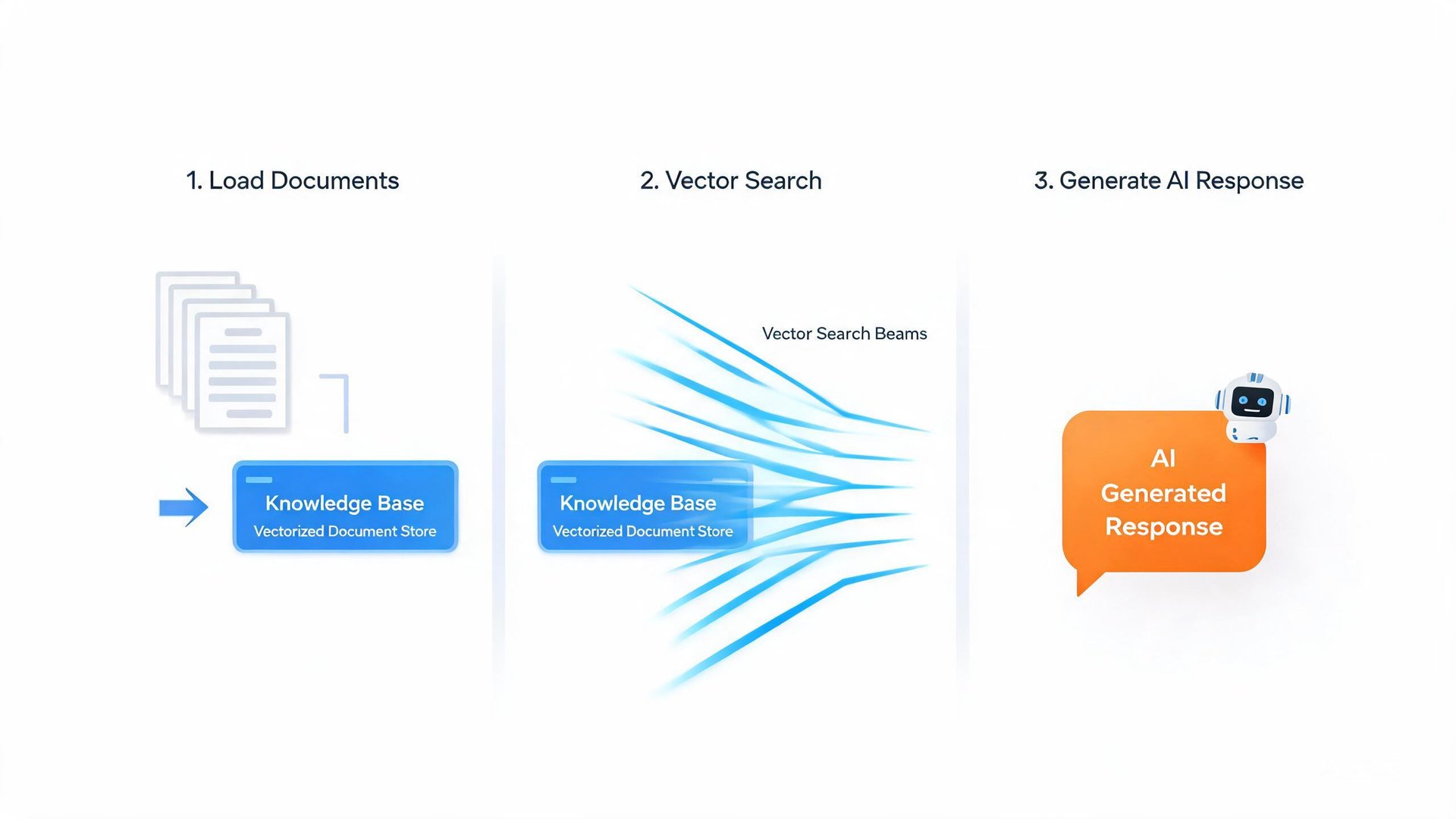
Don't be intimidated by the acronym. RAG's workflow can be summarized in three sentences:
- Chunk your documents, convert them into vectors (embeddings), and store them in a vector database.
- When a user asks a question, search the vector database for the most relevant document fragments.
- Feed those fragments alongside the user's question to the LLM: "Answer using these reference materials."
Essentially, RAG gives the LLM a "portable reference library." The model no longer relies solely on its training memory — it looks up real documents in real time.
2. OpenClaw's Three-Layer Knowledge Architecture
OpenClaw's knowledge base isn't a simple "upload file → chat" system. It's a carefully engineered three-layer pipeline:
Layer 1: Document Ingestion
Supports multiple input formats: - Markdown / TXT (ideal for structured knowledge) - PDF (automatic text extraction) - HTML / URL (direct web scraping) - Lark Docs / Notion / Confluence (via plugins)
Upon ingestion, OpenClaw automatically: 1. Cleans documents: removes formatting tags, headers/footers, extra blank lines 2. Chunks intelligently: splits by semantic boundaries, avoiding mid-sentence cuts (default chunk_size: 512 tokens, overlap: 64 tokens) 3. Annotates metadata: records source document, section title, and update timestamp
Layer 2: Vectorization & Storage
- Embedding model: Default bge-large-en-v1.5 (English) or text-embedding-3-small (OpenAI-compatible), swappable
- Vector database: Built-in ChromaDB, supports external Milvus / Qdrant / Pinecone
- Retrieval strategies: Semantic search, keyword search, or hybrid (combining both)
Layer 3: Retrieval-Augmented Generation
This is where OpenClaw differentiates itself — not just "paste document chunks to the LLM," but multi-step reasoning retrieval:
- Query Rewriting: User asks "how do I...?" → system rewrites it into a more precise retrieval query
- Multi-hop Retrieval: First-round results may trigger a second retrieval round (like following links in web search)
- Relevance Scoring + Reranking: Uses a Cross-Encoder to rescore candidates, not just raw vector similarity
- Context Compression: Prevents exceeding the LLM's context window
3. Hands-On: Build Your First Knowledge Base in 5 Minutes
Prerequisites
- OpenClaw deployed (pre-installed on KAIHE devices, or desktop installation)
- Access the admin panel at
kaihe.local
Step 1: Prepare Your Documents
Create a knowledge/ folder with your documents. Start with Markdown files — they offer the cleanest structure and best chunking results.
Recommended file organization:
knowledge/
├── 01-product-manual.md
├── 02-faq.md
├── 03-after-sales-policy.md
└── 04-competitive-comparison.md
Step 2: Create a Knowledge Base
In the OpenClaw panel, navigate to Knowledge Base → New Knowledge Base:
| Setting | Recommended | Notes |
|---|---|---|
| Name | Product Knowledge | Easy to distinguish multiple bases |
| Embedding Model | bge-large-en | Best for English content |
| Chunk Size | 512 tokens | Balances granularity and recall |
| Overlap | 64 tokens | Prevents key info from being split |
| Retrieval Strategy | Hybrid | Semantic + keyword complement |
Step 3: Upload and Index
Drag files to the upload area → wait for indexing (typically under 30 seconds). Test search results in the preview panel once complete.
Step 4: Bind to an Agent
In Agent Config → Skill Binding, link the knowledge base to your service agent:
skills:
  - name: knowledge-search
    knowledge_base: Product Knowledge
    trigger: auto
    max_results: 5
    min_relevance: 0.7
trigger: auto means the Agent searches the knowledge base for every user query. You can also use trigger: keyword to only search when specific keywords appear.
Step 5: Test
In the OpenClaw chat interface, ask the knowledge-bound Agent questions and observe whether responses reference your document content.
4. Advanced Tips
1. Multi-Base Collaboration
An e-commerce scenario: a support Agent simultaneously binds "Product Specs KB" + "After-Sales Policy KB" + "Logistics Rules KB," automatically routing queries to the correct base.
2. Auto-Updating Knowledge Bases
Use OpenClaw's Cron skill to schedule daily crawls of your website or Lark docs for incremental updates:
cron:
  - name: sync-knowledge-daily
    schedule: "0 2 * * *"
    task: knowledge-sync
    source: "https://your-docs.notion.so/xxx"
3. Persona-Specific Knowledge
Bind different knowledge bases to different personas — "Support Agent Rain" calls the FAQ library, "Tech Agent Max" calls the developer docs — so each Agent plays its designated role perfectly.
5. FAQ
Q: How many documents can the knowledge base store? A: Depends on your device. A KAIHE E1 (32GB) has been tested with 500,000+ document chunks — more than enough for daily business use.
Q: Is there a file size limit? A: Individual PDFs are recommended under 50MB. Split very large files into chapters before importing.
Q: Do I need to re-index after updating documents? A: Yes, but OpenClaw supports incremental indexing — only changed documents are re-processed, no full rebuild needed.
RAG is the critical step that transforms AI from a "knowledgeable stranger" into a "colleague who understands your business." On OpenClaw, the entire process is simplified to under 5 minutes. What remains is the ongoing work of accumulating your knowledge assets.
Next step: If you want your knowledge base not just to answer questions but to actively execute actions (e.g., "check our inventory for this model and place an order if available"), explore OpenClaw's Function Calling capabilities.
tags: RAG, knowledge base, retrieval-augmented generation, OpenClaw tutorial, vector database, embeddings