📖 Glossary
AI Box (also known as Agent Computer / Agent PC), is a dedicated local hardware device that runs AI Agents. Pre-installed with an AI agent management system, plug-and-play, running 24/7. Users can remotely command AI to work via Discord, Slack, Telegram, WhatsApp, and more.
Abstract: Want AI to do your work but don't know where to start? This guide takes you from download to completing your first real task in 30 minutes with WorkBuddy. No concepts, no architecture diagrams—just hands-on practice: download and install, get familiar with the interface, 4 quick-start commands, 3 common beginner pitfalls to avoid, plus 5 copy-paste office instruction templates. Zero experience needed, start producing results today.
Step 1: Install WorkBuddy in 10 Minutes — Pick the Right Version or Waste Half an Hour
Many people get stuck just downloading and installing their first AI tool. WorkBuddy is actually very simple—choose the right version and you'll be up and running in 10 minutes.
Where to download: Go directly to the WorkBuddy official website and download the installer. Both Windows and Mac versions are available. Windows users pick the .exe installer, Mac users pick the .dmg. Just follow the prompts and click Next—you don't need to change any settings. After installation, open the software and register with your phone number or email. First login may require verification, but it's quick.
Two common places beginners get stuck: - Stuck on the loading screen during login: It's usually a network issue. Switch to your phone's hotspot to log in, then switch back to WiFi once you're in. - Missing runtime environment message: Windows users who see a pop-up about missing .NET or Visual C++—just click the download link in the pop-up to install it, then restart WorkBuddy.
Once you're logged in, you'll see a very clean interface. Don't panic—80% of what you'll do only needs two areas: the left side is the chat input box, and the right side is the files and tasks area. You can explore other features later when you're more familiar.
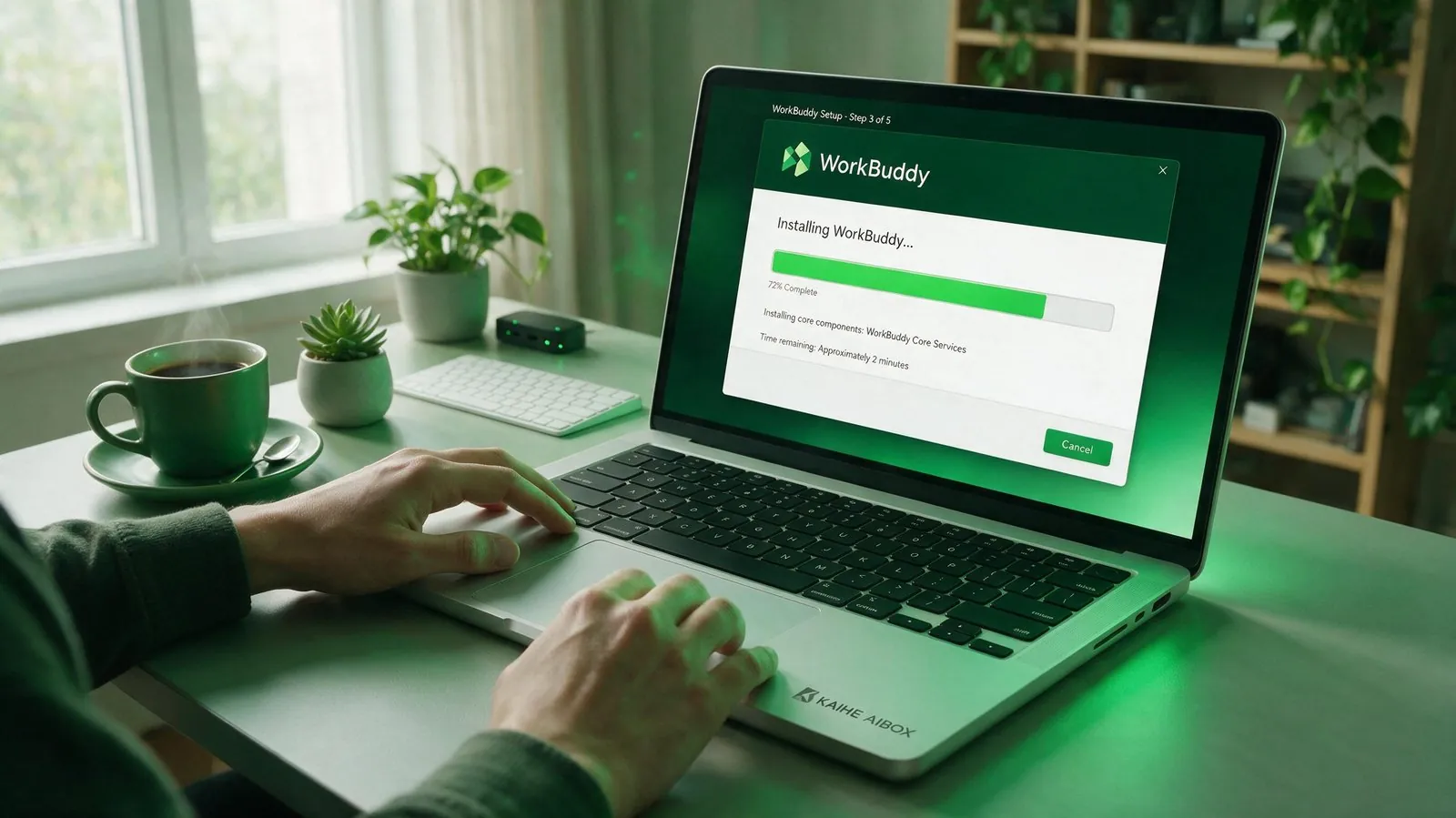
Step 2: Three Core Areas — 80% of Your Work Only Needs the First Two
WorkBuddy's interface looks like it has many features, but for beginners there are really only three core areas you need to master. Get these three down first, and everything else can wait.
Chat Area (most used): This is where you send instructions—just type like you're chatting on WeChat. Tell it what you want in plain language and it does it. No commands to memorize, no code to learn. It understands your natural language, automatically plans the steps, and executes. You can ask questions, have it write things, process files—all commands start here.
File & Task Area (second most used): The right sidebar shows your uploaded files and running tasks. Drag Excel, Word, or PDF files in and it can process them directly. Running tasks show their progress and notify you when done. If you have multiple tasks, you can see at a glance which are running and which are finished.
Skill Store (advanced use): Built-in Skill packages for various tasks—Excel processing, PPT creation, web scraping, email sending, and more. Beginners don't need to install too many at first; the default features are already enough. Come back here when you find yourself thinking "I wish it could do XX" and find the right skill to install.
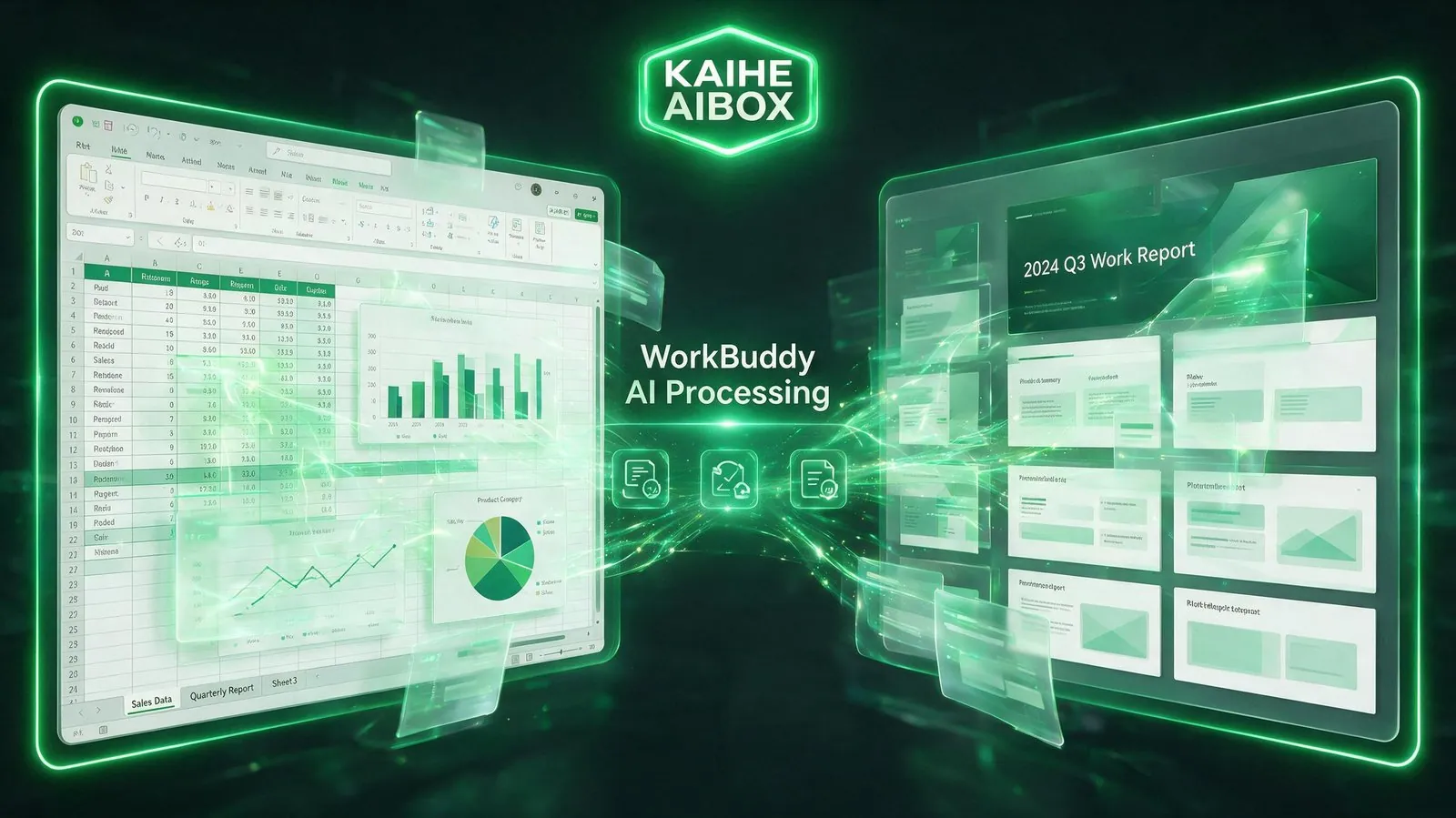
Step 3: 4 Quick-Start Commands — From Simple to Complex
Don't jump straight into complex tasks. Start simple to get a feel for it and build confidence. These 4 commands are ordered by difficulty—just copy and paste:
1. Organize Desktop Files (30 seconds)
"Organize all files on my desktop by type: put images in one folder, documents in another, and installers in a third folder"
This is the simplest starter command—no file dependencies needed, it directly works on your desktop. When it's done, your desktop will be instantly tidy. Very satisfying.
2. Batch Convert Word to PDF (1 minute)
"Convert all Word documents in the 'Contracts' folder on my desktop to PDF format and save them in the same folder"
Drag a Word document into the chat, or just tell it the path. It will convert them one by one—dozens of documents in minutes, much faster than manually opening each one and exporting.
3. Merge Excel Files and Generate Reports (3 minutes)
"Merge all June Excel spreadsheets in the 'Sales Data' folder into one master sheet, summarize by region, create a bar chart, and save the result as 'June Sales Summary.xlsx'"
This is one of the most practical office scenarios. What used to take an hour or two of VLOOKUPs and pivot tables, WorkBuddy merges and summarizes in minutes, and can even generate charts directly.
4. One-Sentence PPT Creation (5 minutes)
"Make a 'Q2 Work Summary' PPT, about 10 slides, including work review, key data, problem analysis, and second-half plans. Style: clean and business professional"
No need to find templates or do layout—it automatically generates content and formatting. After it's done, you just edit the text and swap images. Perfect for last-minute report prep.
3 Common Beginner Pitfalls — Avoid Them to Save Time
Pitfall 1: Being too vague with your request Many people first use it by saying "process this Excel for me" and then get results that are nothing like what they wanted. Remember: the more specific your request, the more accurate the result. Don't say "process this"—say "summarize sales by region and calculate month-over-month growth rate."
Pitfall 2: Forgetting to attach files When you need to process a file, remember to drag it into the chat area first, or @ the filename in your message. Otherwise it won't know which file you're talking about. Many people say "the AI can't find my file"—they just forgot to upload it.
Pitfall 3: Not switching to the right mode WorkBuddy has different modes. Use chat mode for regular conversations, task mode for complex tasks that need multiple steps. For file processing, report generation, and other multi-step operations, switch to task mode—it will execute step by step and tell you what it's doing at each stage.
Summary
Getting started with WorkBuddy in 30 minutes is actually not hard at all: 10 minutes for installation, 5 minutes to get familiar with the interface, 15 minutes to run through 4 commands. You can start using it to do your work the very same day. The key is not being afraid to try things—AI is a tool, the more you use it the better you get at communicating with it.
Start with simple tasks like organizing files and converting formats, then gradually move to more complex ones like reports and presentations. Once you're comfortable with it, you'll find you save an hour or two every day. Let AI handle the repetitive work while you focus on what matters.
Further Reading: - Install These 6 WorkBuddy Skills: Excel, PPT, Web Forms All Done by AI — Step-by-Step Configuration Tutorial - WorkBuddy Zero-to-Hero: No Code, Just Plain English for Weekly Reports, PPTs, and Excel Analysis - WorkBuddy Automation Workflow Complete Guide: Let AI Daily Summarize Data, Send Reports, and Make Backups for You
WorkBuddyTutorial #AIOfficeAutomation #ZeroToHeroAI #EfficiencyTools #ProductivityHacks #KAIHEAIBOX
For more information, search [KAIHE AIBOX] or contact: [email protected]
KAIHE AIBOX · 7x24 Personal AI Assistant | AI Agent