On August 9, 2026, WorkBuddy pushed version 1.2.0. On the surface, it's three changes. But one of them — launching desktop tasks from your phone — fundamentally changes how you use WorkBuddy. You're out and about, pull out your phone, tap once, and WorkBuddy on your home or office computer starts working.
The same day, Tencent PR director Zhang Jun posted a public reminder: before using phone-based remote desktop control, make sure you've enabled the "lock-screen remote" toggle on your PC. And if you're using a laptop, don't close the lid — hibernation kills the task.
These two reminders, placed side by side, perfectly frame what WorkBuddy 1.2.0 can do — and where KAIHE AIBOX fills the gap.
What WorkBuddy 1.2.0 Actually Updated
📖 Glossary
AI Box (also known as Agent Computer / Agent PC), is a dedicated local hardware device that runs AI Agents. Pre-installed with an AI agent management system, plug-and-play, running 24/7. Users can remotely command AI to work via Discord, Slack, Telegram, WhatsApp, and more.
Three items. None of them are massive on their own, but together they erase the physical distance between you and your AI.
Item one: view and launch desktop tasks from your phone. This is 1.2.0's marquee feature. Previously, using WorkBuddy meant sitting at your computer — you typed commands into the desktop client, watched the results, handled output files. Now you're on the subway, at a café, in a client's elevator lobby. Open the WorkBuddy mobile app, and you can see what your computer is currently running — and more importantly, issue new tasks directly.
Put simply: your AI coworker is working on your computer, and your phone is the remote control.
Item two: view office documents directly on mobile. Documents, spreadsheets, and slides generated by WorkBuddy can now be viewed and shared on your phone. Before this, you had to open your laptop just to confirm an AI-generated Excel report. Now you tap it open in WeChat.
Item three: optimized task execution and conversation experience. The official wording is "more stable response and interaction." Translation: remote commands from your phone won't lag, task status refreshes faster, and you won't be stuck wondering whether a task is actually running or silently frozen.
Add them up, and WorkBuddy transforms from "desktop software" into "cross-device service." That's the right direction, because an AI agent's biggest value is doing work for you — and work shouldn't have a physical boundary.
But There's a Hard Limit, and Zhang Jun Said It Himself
Zhang's reminder roughly translates to: to remotely control WorkBuddy, you must enable "lock-screen remote" on your PC. Laptop users, don't close the lid — hibernation stops tasks.
This is well-intentioned usage guidance, but it also exposes a fundamental problem: WorkBuddy is still, at its core, software running on a computer.
Your computer must be powered on. It must be connected to the internet. WorkBuddy must be online. And if it's a laptop, the lid can't be closed. Five conditions, all required, before "remote control from your phone" means anything.
Picture a real scenario: Friday evening, 6 PM. You shut down your office desktop and head home on the subway. On the way, you remember a data report that should have been run today for Monday. You pull out your phone and send WorkBuddy a task — useless. The computer is off. You're on a three-day business trip, laptop stuffed in your bag, conference room Wi-Fi is spotty — useless. No connection. You suddenly want to check at midnight whether the afternoon analysis report finished running — that one might actually work, assuming you deliberately left your computer on before bed.
This isn't WorkBuddy's fault. It's a physical constraint no desktop AI software can escape: software needs a host, and when the host shuts down, the software ceases to exist.
And that's where a complementary solution comes in — AI hardware that never turns off.

It Keeps Working While You Sleep — a Different Species of AI
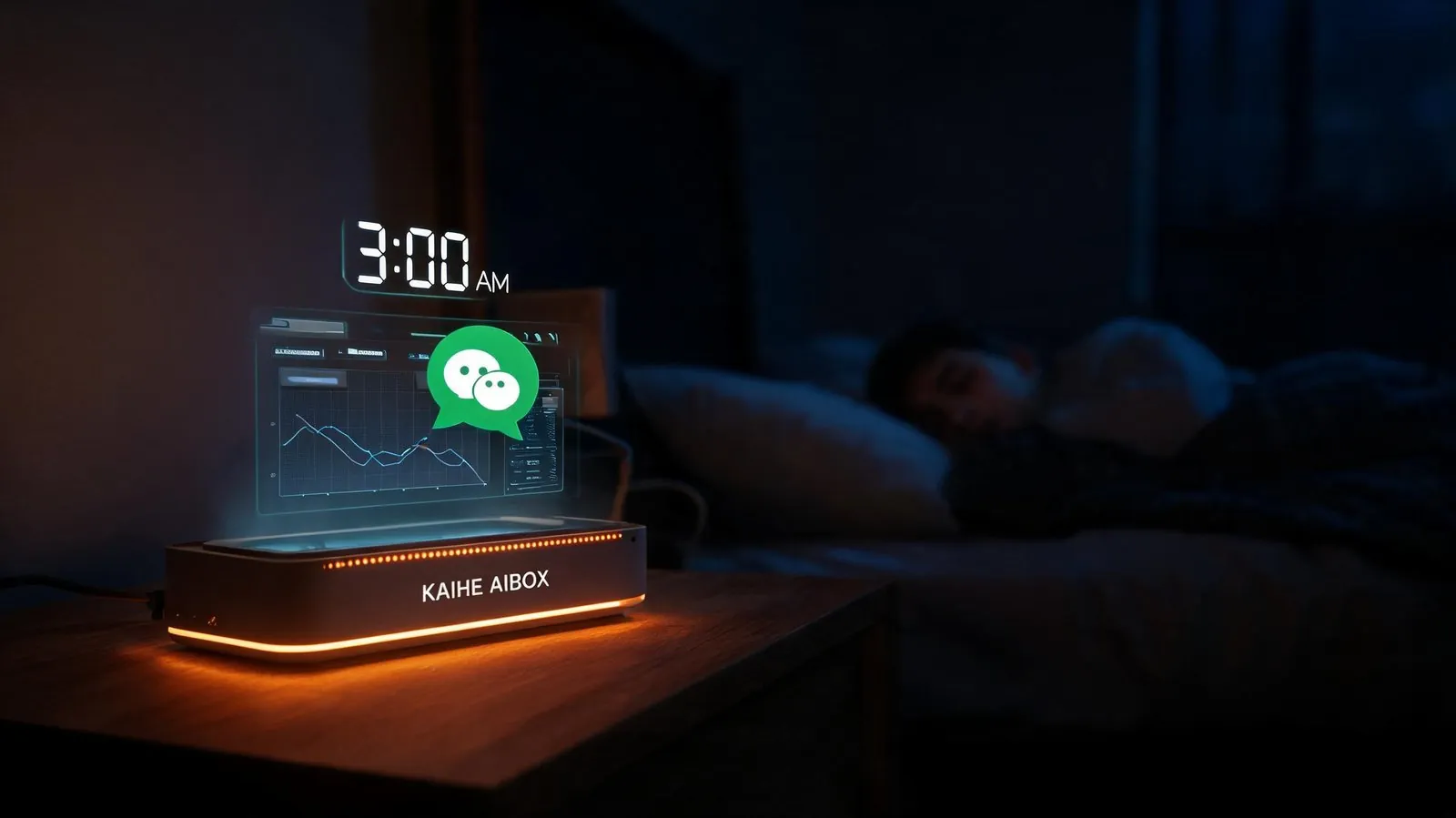
The KAIHE AIBOX is a standalone AI hardware device. It doesn't attach to your work computer. You place it at home, plug it into power and network, and it runs 24/7 in the background — no monitor needed, no mouse, no keyboard, no "power on" ritual. From the moment you buy it, it stays on.
It does different work from WorkBuddy. Here's an intuitive way to think about it: WorkBuddy is your day-shift colleague, operating directly on your desktop — opening Excel to build pivot tables for you, launching the browser to fill in forms, adding animations to your PowerPoint. It needs to see your screen, use your software, operate your file system. So it has to run on your computer.
The KAIHE AIBOX is your night-shift colleague. It doesn't need to see your screen. It does backend orchestration work — scheduled data pulls, multi-model API dispatching, long-running automation tasks, data transfer between services, WeChat notifications. None of this requires a graphical interface or an Office suite. It just requires a scheduling center that's always online.
These two aren't competitors. They're rotational shifts.
More concretely: a small startup team. During the day, everyone runs WorkBuddy on their own computers — writing weekly reports, doing competitive analysis, organizing customer data. At the end of the day, they shut down their computers, and all WorkBuddy instances go offline. If they set up one KAIHE AIBOX-A1, from 8 PM to 8 AM the next morning, A1 runs scheduled data collection, generates daily summary reports, and auto-pushes them to everyone's WeChat. When the team wakes up, the overnight data is already on their phones. This night-shift report is something daytime WorkBuddy can't produce — because "last night's data" didn't exist yet during the day.
Two Devices, One Workflow: How to Set It Up
Setting this up in practice is remarkably simple.
Scenario one: an analyst who needs daily industry data. During the day, you use WorkBuddy to manually trigger data pulls and generate chart-based reports. At night, your computer is off. The KAIHE AIBOX runs scheduled tasks in the background — 2 AM pulls the full previous day's data, 4 AM runs the analysis model, 6 AM generates the report and pushes it to your WeChat. You open your eyes, pick up your phone, and it's already there.
Scenario two: you're on a business trip. Your laptop travels with you for meetings — it can't stay on 24/7 running tasks. You set up a Profile on the KAIHE AIBOX specifically for remote data sync during travel. As described in the 24/7 AI article, with deployment examples spanning 23 regions globally, the core principle is always: you move, it doesn't.
Scenario three: team collaboration. Three-person team. Daytime, everyone uses their own WorkBuddy for individual work. Nighttime, one KAIHE AIBOX in the office runs full-team data aggregation — order summaries, customer service ticket statistics, project progress snapshots. Next morning, everyone opens their phone to three WeChat messages: yesterday's sales numbers, today's to-do list, an AI-generated morning briefing.
In all these scenarios, WorkBuddy and KAIHE AIBOX each do their own thing. WorkBuddy doesn't touch KAIHE's backend scheduling. KAIHE doesn't try to take over WorkBuddy's desktop operations. Their only intersection is data — files WorkBuddy produces during the day can be processed further by Hermes scheduled tasks on KAIHE. Data KAIHE crunches overnight can be fed into WorkBuddy for deep analysis the next day.
The Endgame of Phone-Controlled AI
WorkBuddy 1.2.0 solves a real problem: you don't need to be physically tethered to your computer for AI to work.
But between "I can see progress on my phone" and "AI is genuinely working 24/7," there's still a gap called "always online." And that always-on requirement can't be met by a laptop that gets shut down every evening.
This isn't about how many AI subscriptions you buy. WorkBuddy itself is free. KAIHE AIBOX is a one-time hardware investment — as discussed in the dedicated AI box article: it's not a replacement for cloud subscriptions. It's a different category altogether. One operates on your desktop, doing things with its hands. The other operates in the background, doing things with its brain.
WorkBuddy 1.2.0 is no slouch of a release. The idea of remote desktop task launching from a phone isn't new, but actually shipping it with smooth performance is rarer than you'd think. Based on early reviews, this version held its own on responsiveness and stability. Combined with the document viewing capability, you could argue it genuinely transformed from a desktop tool into a cross-device service.
But here's the one thing to remember: WorkBuddy runs on your computer. Computer off, WorkBuddy stops. KAIHE AIBOX, as long as the power cord stays in, keeps running. Want both? Day shift: WorkBuddy. Night shift: KAIHE AIBOX. That's the most practical "AI does your work for you" stack right now.
Risks Worth Mentioning
WorkBuddy 1.2.0's phone remote feature has one hard prerequisite — the "lock-screen remote" toggle must be enabled on your computer beforehand. Sounds small, but if your computer is already off and you want to turn this on remotely, you can't. Enable it before you leave for that trip, or your WorkBuddy installation is dead weight while you're away.
Additionally, KAIHE AIBOX's Hermes scheduled tasks currently depend on the Skills ecosystem. If no Skill exists for a particular data source, the automation chain breaks. This isn't a hardware problem — it depends on what tasks you need to run. Check the Skills marketplace coverage on the official store first, or search for your specific use case to confirm Skill support before purchasing.
See it in action → KAIHE AIBOX Store or check out the KAIHE AIBOX-A1 24/7 working mode.
Further Reading
- AI Can Work 24/7 for You — Because It Keeps Running While You Sleep — Your AI keeps working after you shut down your computer
- Why an AI Box Beats Installing AI on Your PC — The real advantages of dedicated AI hardware
- Doubao and Qianwen Killed Their Agents on the Same Day — KAIHE Users Unaffected — Local AI isn't held hostage by vendor decisions
WorkBuddy #AIOffice #PhoneControlAI #RemoteWork #KAIHEAIBOX
Learn more — search for 【KAIHE AIBOX】 Contact: [email protected]
—— KAIHE AIBOX · Your Private 24/7 AI Assistant | User Case Study