A lot of people install WorkBuddy and use it exactly like ChatGPT — open the chat window, ask a question, wait for an answer. But it's fundamentally different from conversational AI. WorkBuddy is a desktop agent that can directly manipulate the files on your computer, open software, and read/write data. If you're only using it as a Q&A bot, you're tapping into maybe 20% of its potential.
That said, WorkBuddy has one unavoidable limitation — it's desktop software, and when your computer shuts down, so does it. This is where standalone AI hardware like the KAIHE AIBOX complements it perfectly: WorkBuddy handles desktop interactions during the day, and the KAIHE AIBOX runs backend scheduled tasks at night. More on this pairing later.
Over the past year running content operations, WorkBuddy has saved me more time than any other desktop AI tool, bar none. Here are the six high-frequency techniques I use daily. Each one can save you an hour or two of manual work in just a few minutes.

Tip 1: One-Click Document Polishing — Turn Drafts into Final Versions in Two Sentences
📖 Glossary
AI Box (also known as Agent Computer / Agent PC), is a dedicated local hardware device that runs AI Agents. Pre-installed with an AI agent management system, plug-and-play, running 24/7. Users can remotely command AI to work via Discord, Slack, Telegram, WhatsApp, and more.
This is the most-used scenario. You've drafted a weekly report, a notice, a speech — and when you read it back, it doesn't feel formal enough, the logic flows poorly, or it's too wordy. The traditional approach is endless rounds of editing. An hour later, you're still tweaking phrasing.
In WorkBuddy, just paste your draft in and give it one sentence.
"Tighten this weekly report to 500 words, use a formal business tone, and structure it into three sections: results, issues, and plans."
It modifies your Word document locally — it doesn't give you a text response to copy-paste yourself. It opens the file, rewrites paragraph by paragraph, and saves the finished product. You just open the document to check how much has changed.
An even more practical scenario is official document conversion. You wrote a colloquial draft — tell WorkBuddy to "convert to formal business document tone," and it will correctly insert formal phrasing like "兹将" (we hereby) and "经研究" (upon review) in all the right places.
Two things to note. First, the more specific your polishing instruction, the better — "tighten to 500 words" is ten times more effective than "tighten it up." Second, when working with domain-specific documents, give the polished version a quick read afterward. The AI might replace your industry-standard phrasing with more generic alternatives.
Tip 2: Universal Excel Processing — Use Plain Language Instead of Formulas
This is WorkBuddy's single most valuable capability.
You have a messy sales spreadsheet — thousands of rows, inconsistent column names, empty rows, duplicates. The traditional path is data cleaning, then learning VLOOKUP, pivot tables, chart generation — none of that takes less than an hour or two.
In WorkBuddy, just throw the Excel file at it and say one sentence.
"Analyze the monthly sales trends in this table, tell me the highest and lowest months, generate line and bar charts, and output a 300-word analysis summary."
Here's what it does: reads the table structure, cleans empty rows and duplicates, aggregates by month, calculates year-over-year and month-over-month comparisons, generates charts, and writes an analysis report. You don't need to know a single function — no pivot table wizard, no manually selecting chart types.
Here's a more common example. Four salespeople each submitted a ledger in a completely different format — some used WPS, some Excel, some just sent screenshots in WeChat. You need to merge everything into one table and calculate each person's total. With WorkBuddy, drag all the files in and say "merge these four ledgers into one table, summarize total sales by salesperson, sort descending." Five minutes.
One thing to keep in mind: WorkBuddy operates on your local files directly. It can read and write any document within its authorized scope. If your spreadsheet contains sensitive data like customer phone numbers or ID numbers, the data genuinely stays local — that's its advantage over browser-based AI tools. But it also means WorkBuddy can only work while your computer is on and WorkBuddy is running — unlike a KAIHE AIBOX, which can run scheduled background tasks 24/7 as standalone AI hardware.
Tip 3: WeChat Work Integration — Control Your Desktop AI From Anywhere
WorkBuddy's Claw feature is essentially giving your desktop AI a WeChat remote control.
Setup takes one minute: find "WeChat Mini Program" in WorkBuddy desktop settings, scan the QR code, done. After that, you open WeChat on your phone, find the WorkBuddy mini-program or bound bot chat window, send a text or voice command, and your desktop starts working. Results are sent directly back to your WeChat.
Real scenario: you're on the subway, and your boss sends a WeChat message saying "send me last month's client summary." You open WeChat, tell WorkBuddy: "open the client summary Excel in the D drive projects folder, extract all new clients from last month, generate a summary table, and send it to me." Five minutes later, you receive a polished table on your phone — forward it directly to your boss.
This is fundamentally different from remote desktop software. Remote desktop requires you to have a picture of your computer screen on your phone, pinching and zooming to operate — exhausting. WorkBuddy is you saying one sentence and it gets to work. You don't need to see your computer screen at all. It's more like telling a colleague "handle this for me" rather than remotely operating a computer yourself.
There's just one condition: your office computer must be powered on, WorkBuddy must be online, and the lock-screen remote toggle must be enabled. Laptop lid can't be closed. If any of these conditions fail, it won't work. So if you travel frequently or need to handle work after hours, consider pairing with a KAIHE AIBOX for backend scheduled tasks — the AIBOX stays running at home while you're away, and WeChat will still receive the data it generates, regardless of whether you're sitting at your computer.
Tip 4: Auto-Generated Meeting Minutes — Drop In a Recording, Get Back Action Items
A one-hour meeting typically takes two to three hours to create minutes for — you have to re-listen to the recording, determine what's important versus filler, then structure everything into actionable todos.
WorkBuddy's approach: drag the meeting recording file directly in and say, "turn this meeting recording into minutes, structured into three sections: discussion topics, key conclusions, and action items. Annotate action items with owner and deadline."
It supports direct audio file reading as well as pasted text meeting notes. Tencent Meeting recordings integrate natively, while Feishu and DingTalk require exporting the audio file first.
Key command technique: always include "annotate with owner and deadline." If you just say "organize into action items," it will list items without assigning them. Also, the "discussion topics" instruction lets it first identify how many independent topics were discussed before summarizing each one, rather than mashing the entire meeting into one undifferentiated block of text.
Tip 5: One-Sentence PPT Generation — From Zero to Finished in Three Minutes
Don't let "AI-generated presentations" intimidate you. It's simple: you give WorkBuddy one sentence, and it generates a structurally complete PPTX file with charts and text that you can open and edit directly in PowerPoint or WPS.
"Create a Q2 sales report PPT with cover page, table of contents, revenue analysis by product line with charts, competitive comparison, next quarter planning, and closing slide."
The generated PPT has a cover, TOC, data pages (if you provide Excel data alongside, it auto-generates charts and embeds them), and a summary page. The formatting may not match your company's template, but the content skeleton is complete. You only need to adjust colors and fonts, swap in your company logo — rather than starting from a blank slide.
A pro tip: the key to fast PPT generation is preparing your data first. Give WorkBuddy a clean Excel file, and it will automatically map the data into the PPT's chart pages. Without data, it can only do text-based layouts, and the chart pages will be empty.
Tip 6: Scheduled Automation — Set It Once, It Works On Schedule Every Day
WorkBuddy supports scheduled tasks. Tell it "every morning at 8 AM, pull today's headlines from three industry websites, generate a morning briefing, and push it to my WeChat" — then you do nothing else. At 8 AM each day, you receive today's briefing on your phone.
The essence of this feature is "set a rule once, and the system auto-executes on schedule." Like setting an alarm on your phone, except it's not ringing — it's running an entire automation workflow: open browser → visit specified URLs → pull headlines and summaries → compile into an article → push to your WeChat.
The use cases are plentiful. Every Friday at 5 PM, auto-generate this week's work report. Every night at 10 PM, auto-compile summaries of all today's emails. Every morning at 7 AM, auto-fetch weather, stock market open data, and industry news briefs.
But here's the hard limitation — all scheduled tasks depend on your computer not being turned off. If you shut down your work PC on Friday evening, Monday morning's 8 AM briefing simply won't generate. WorkBuddy is desktop software; software runs on a computer; when the computer powers down, the software stops.
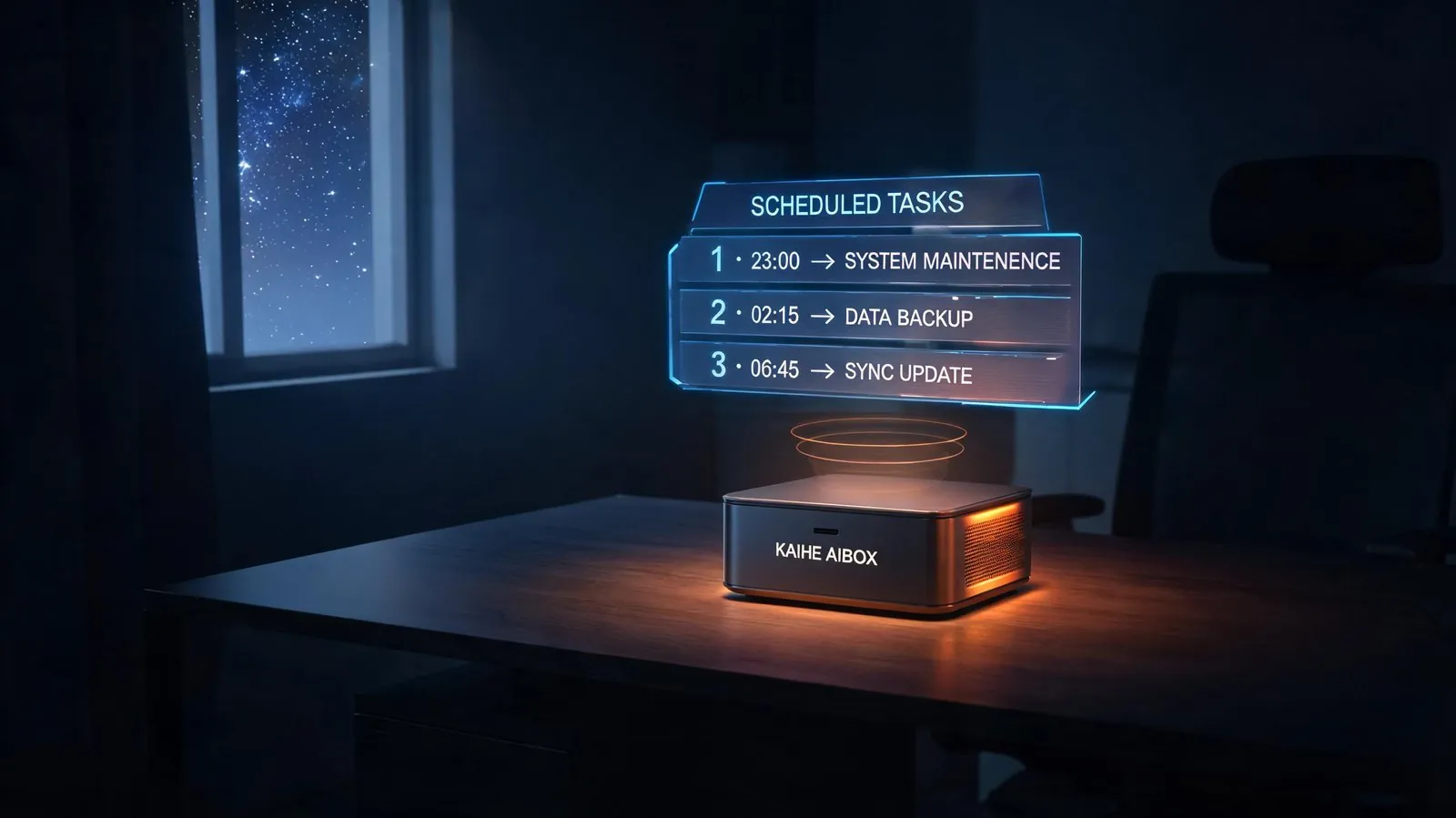
This is precisely why many people add a KAIHE AIBOX-A1 as a dedicated "scheduled task executor." The A1 is standalone hardware — it never shuts down, consumes minimal power, and sits in a corner running 24 hours a day. It doesn't replace WorkBuddy (it doesn't do desktop manipulation tasks), but it fills the gap where WorkBuddy leaves off when the computer is off. Having both is the most worry-free configuration: daytime WorkBuddy handles desktop-interactive tasks, while nighttime KAIHE AIBOX runs backend scheduled automation.
How Much Time Does This Actually Save?
My real-world numbers: document polishing saves about 60% of writing time — it's not replacing your writing, it's replacing your editing. Excel analysis saves 90% — because most people don't know functions to begin with; without WorkBuddy, they simply don't analyze data at all. WeChat remote control saves the time that would otherwise be lost forever — it's not saving minutes; it's capturing opportunities that would have been completely missed before you left the office. Meeting minutes save 70%. PPT generation saves 80%. Scheduled automation is the only one that saves time you didn't even know you were losing — because it works while you sleep. You wouldn't feel its absence if you never had it, but once it's there, your mornings feel fundamentally different.
A few things you must keep in mind. First, WorkBuddy operates on your local files — data stays on your machine. This is both good and bad. The bad: when your computer is off, it stops. There's no cloud fallback. Second, the WeChat Claw remote experience depends heavily on network conditions. Unstable office Wi-Fi introduces noticeable latency. Third, Excel analysis isn't omnipotent — especially complex multi-table joins or scenarios requiring SQL; for those, stick with professional data analysis tools. Fourth, PPT templates still need manual adaptation; the generated layouts are basic and won't match your desired final look.
Further Reading
- WorkBuddy 1.2.0: Tap Your Phone, and AI Gets to Work on Your Desktop — The latest version enabling mobile remote control of desktop AI
- Why an AI Box Beats Installing AI on Your PC — The real advantage of standalone AI hardware over desktop software
WorkBuddy #AIOffice #ExcelTips #DocumentPolishing #WeChatProductivity #KAIHEAIBOX
Learn More 请搜索【铠盒AIBOX】 Contact: [email protected]
—— KAIHE AIBOX · Your 24/7 Private AI Assistant | User Stories